
Automatic document checks and fraud alerts
The portal looks at every uploaded document soon after it arrives, and every day looks for signs of fraud across the records. A result is a hint for staff to look at, never a decision.
What you will learn
- Find documents that need a look
- Read what was found and mark a finding as fine
- Read a fraud alert and confirm or dismiss it
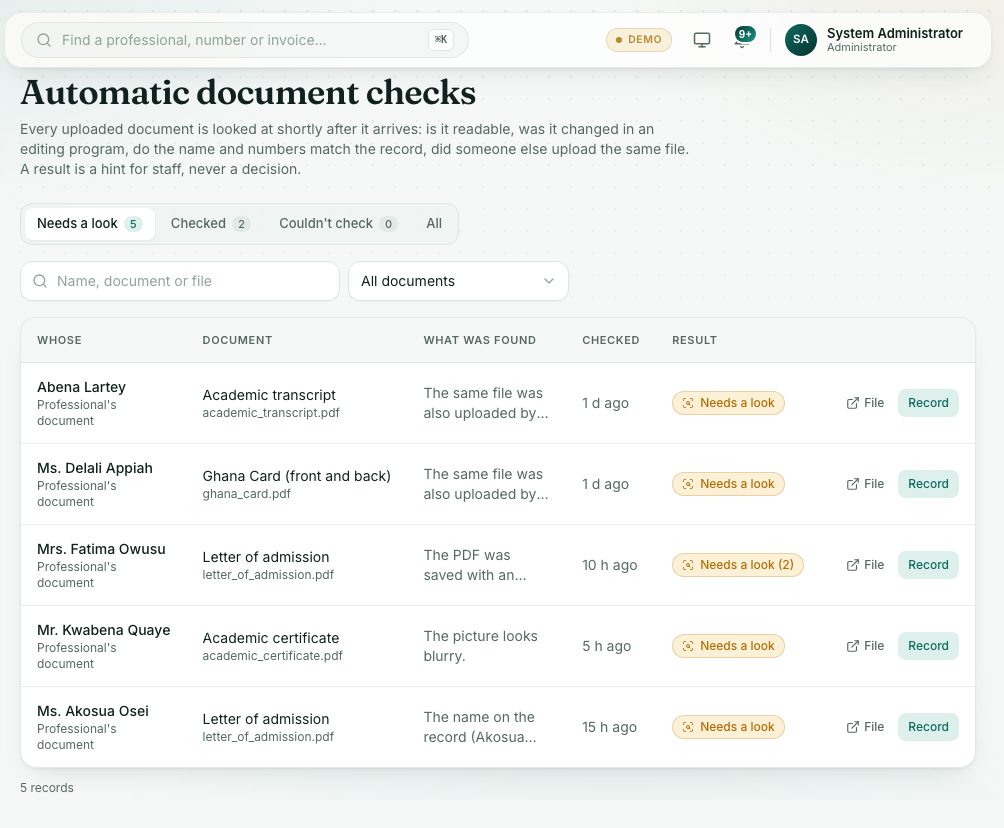
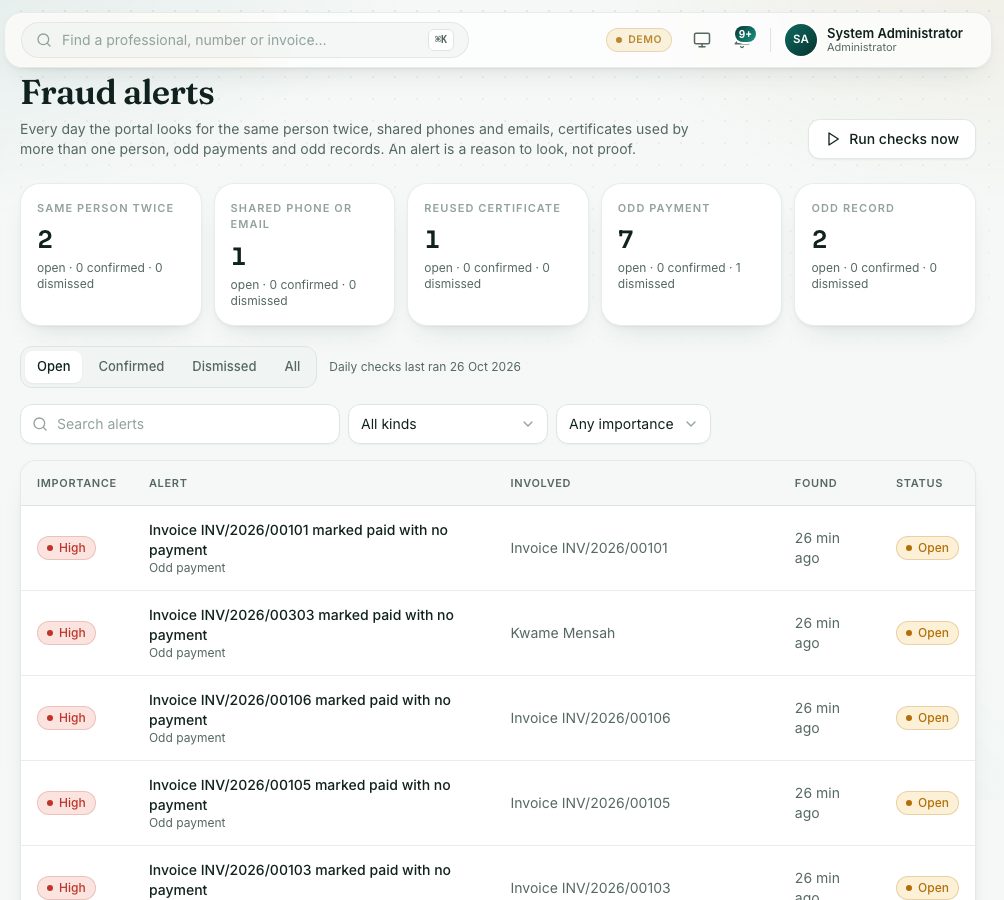
Automatic document checks look at each document: is it readable, was it changed in an editing program, do the name and numbers on it match the record, and has someone else uploaded the same file. Fraud alerts come from daily checks for the same person twice, shared phones and emails, certificates used by more than one person, odd payments and odd records.
demo.ahpcghana.com/staff/integrity/documents
demo.ahpcghana.com/staff/integrity/alerts
Step by step
- Open System administration and press Automatic document checks. It opens on Needs a look.
- Use the tabs Needs a look, Checked, Couldn't check and All. Search by name, document or file, or pick a kind in All documents (professionals' documents, WAEC result slips, accreditation documents or passport photos).
- Click a row to read the findings.
- Each finding says what was noticed, for example a name that doesn't match the record or the same file uploaded by someone else.
- Press File to look at the document, and Record (or Open the record) to open the person or application.
- When you have checked a finding and it is fine, press Looked at — fine, add what you checked and press Save.
- Under Read from the document you may see a number read from the file. Press Use this to save it on the record if it is right.
- Press Check again after a new file is uploaded.
- The same check shows as a small badge next to documents on System administration → Document checks and on applications. Press the badge to read it.
- For fraud alerts, open Compliance and Enforcement and press Fraud alerts. The cards show each kind: Same person twice, Shared phone or email, Reused certificate, Odd payment and Odd record. Press a card to filter.
- Click an alert. Read the explanation, then open the People and Records it names.
- Type Your note: say what you checked. It is needed to decide.
- Press Confirm if it is fraud or a real problem, or Dismiss if it is fine. Reopen brings a decided alert back.
What you will see
- Needs a look, Checked or Couldn't check on each document, with a score out of 100.
- Alert importance: High, Medium or Low. Status: Open, Confirmed or Dismissed.
- Daily checks last ran … next to the alert tabs. Run checks now runs them straight away.
Check yourself
Pick an answer for each question, then press Check my answers. Nothing is saved or sent.