
Open and close application windows
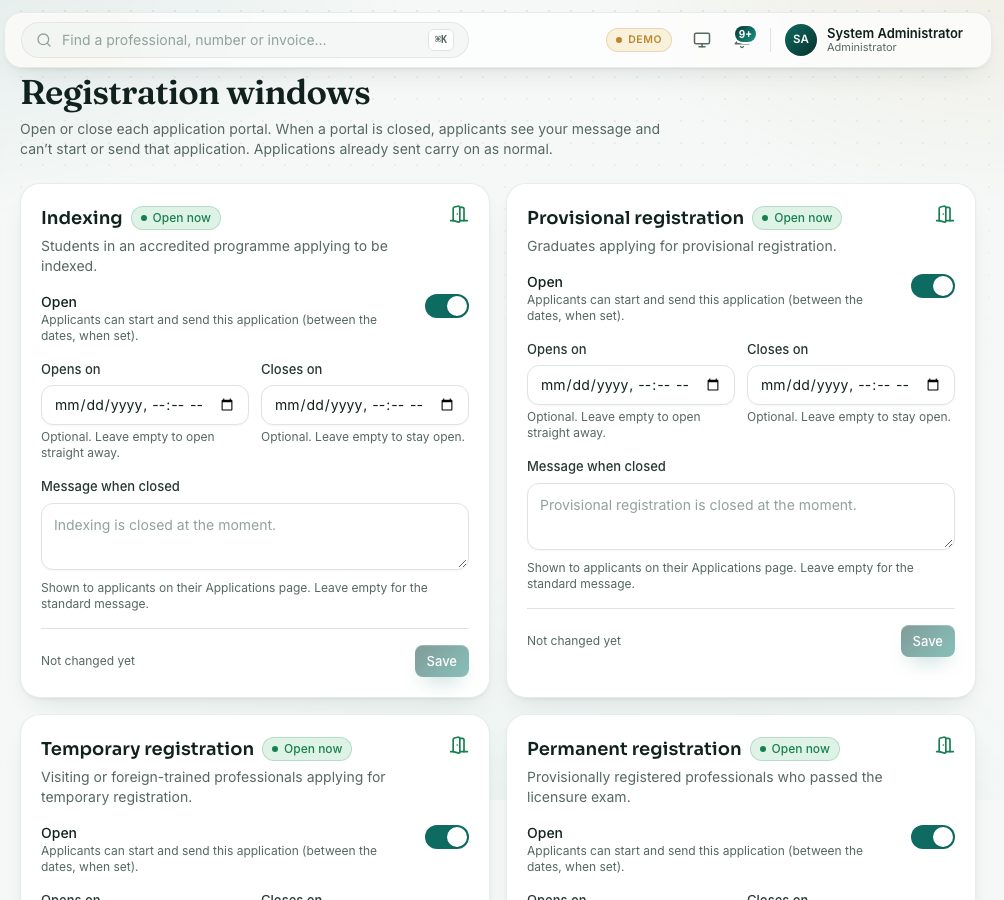
Open or close each kind of application. When one is closed, applicants see your message and can’t start or send it.
What you will learn
- Open or close an application window
- Set opening and closing dates
- Write the message applicants see
demo.ahpcghana.com/staff/registration-windows
Step by step
- Open Examination and Registration, then under Registration press Registration windows.
- Find the card: indexing, provisional, temporary, permanent, upgrade, foreign-trained or exam applications.
- Turn the switch to Open or Closed.
- If you like, set Opens on and Closes on. Leave them empty to open straight away and stay open.
- Type a Message when closed, or leave it empty for the standard message.
- Press Save on that card.
What you will see
- Each card shows Open now or Closed now, and who changed it last.
- The Renewal / Good Standing card follows the renewal periods. Close renewals now ends today’s periods.
Check yourself
Pick an answer for each question, then press Check my answers. Nothing is saved or sent.