
Merge and rename professions
Keep one official name for each profession. Merge duplicates, rename to the Council’s approved name, and keep old names as former names.
What you will learn
- Check the possible duplicates
- Merge professions after seeing the preview
- Rename a profession
- Add a former name
Old records sometimes use several names for one profession. Mapping them to one official name means reports, renewals, Good Standing and dashboards count each profession once.
demo.ahpcghana.com/staff/setup/profession-mapping
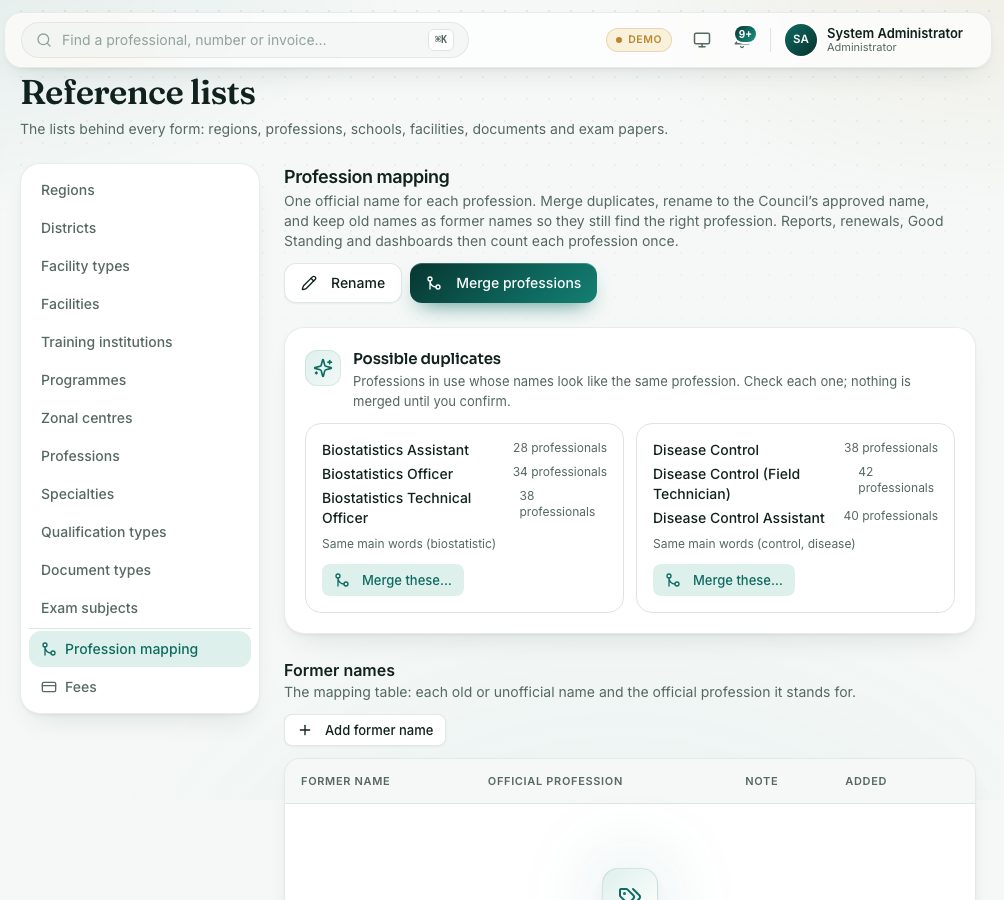
Step by step
- Open System administration → Profession mapping.
- Read Possible duplicates. These are professions in use whose names look alike. Press Merge these… on a group to start with them chosen.
- Or press Merge professions:
- 1. Professions to merge: tick the old or duplicate names.
- 2. Official profession: choose the one to keep, or A new official name… and type it.
- Add a Note (optional), for example the Council decision.
- Press See what will change.
- Read the preview: how many professionals move, their applications, exams and renewals, and how many certificates are kept as printed.
- Press Merge now to do it, or Back to change your choice.
- To rename one profession, press Rename, choose the Profession, type the New official name and press Rename.
- To add an old name by hand, press Add former name, type it, choose the Official profession and press Add.
What you will see
- Nothing changes until you have seen the preview and pressed Merge now.
- Merged names are kept as former names, and the merged professions leave the pick lists.
- Each professional keeps a note of the name they were registered under. Certificates already issued are not changed.
- Recent changes lists every merge and rename, who did it and when.
Check yourself
Pick an answer for each question, then press Check my answers. Nothing is saved or sent.