
Check my computer
Test your browser, screen, full screen, camera and internet connection before exam day.
What you will learn
- Run the computer check
- Fix anything marked “Needs a look” or “Not ready”
demo.ahpcghana.com/portal/exams/online/check
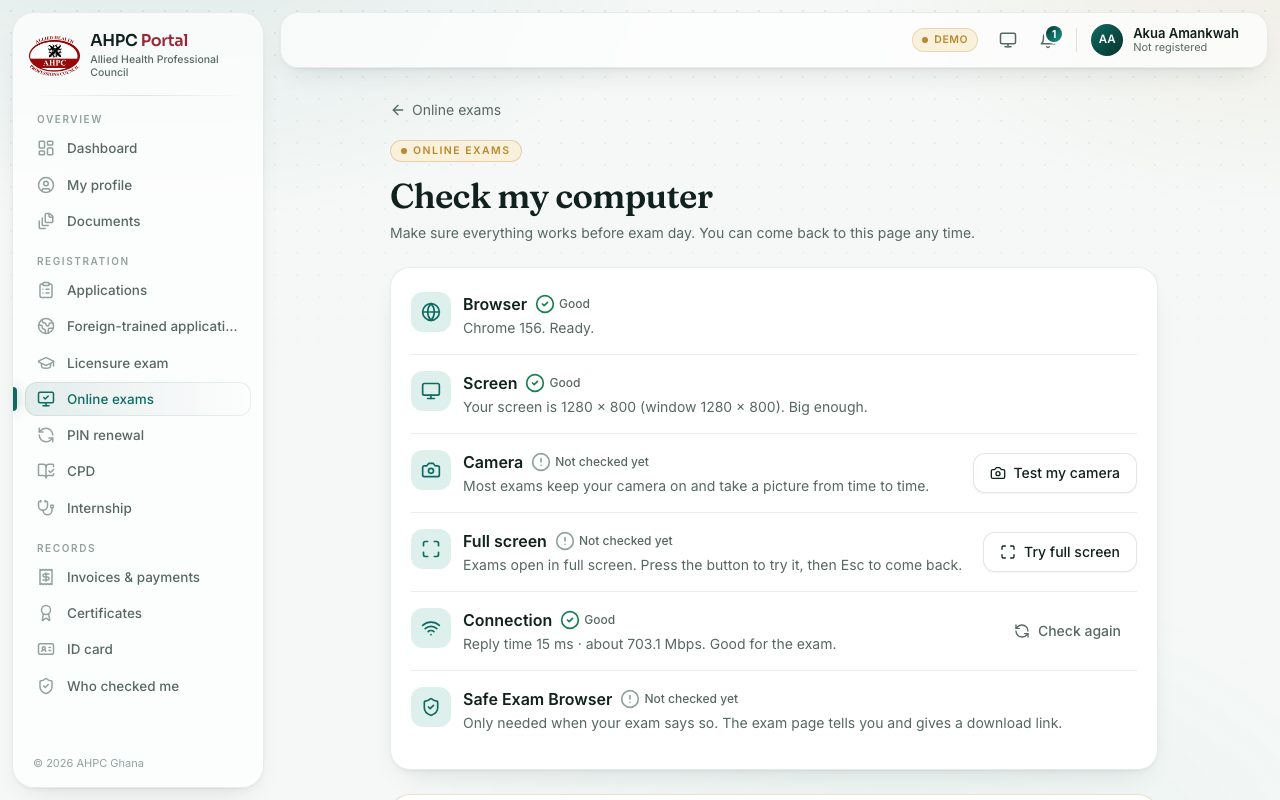
Step by step
- On Online exams, press Check my computer.
- Wait a few seconds while the portal checks your browser, screen and connection.
- Press Try full screen. When it works, press Esc to come back.
- Press Test my camera and allow the camera when the browser asks. You should see yourself; make sure your face is well lit and in the middle. Press Turn off when done.
- If something says Needs a look or Not ready, read the advice under it, fix it and press Check again.
- When it says Your computer is ready, press Start a practice exam to try the exam screen.
What is checked
- Browser: use the latest Chrome, Edge or Firefox. An old version needs updating.
- Screen: a laptop or desktop. Phones are not allowed for real exams unless the exam says so.
- Full screen: exams open in full screen.
- Camera: most exams keep your camera on. If it is blocked, allow it with the camera icon in the address bar.
- Connection: a very slow connection is flagged. Try a better one before the exam.
- Safe Exam Browser: only needed when your exam says so; the exam page then gives a download link.
Check yourself
Pick an answer for each question, then press Check my answers. Nothing is saved or sent.