
Mark written answers
Mark the written answers by hand, question by question, without seeing whose answer it is.
What you will learn
- Open the Marking tab
- Mark an answer and add a comment
- Follow your progress
Every other question type is marked automatically. Only written answers wait here. Names are hidden while marking so every answer is judged the same way.
demo.ahpcghana.com/staff/online-exams?tab=sittings
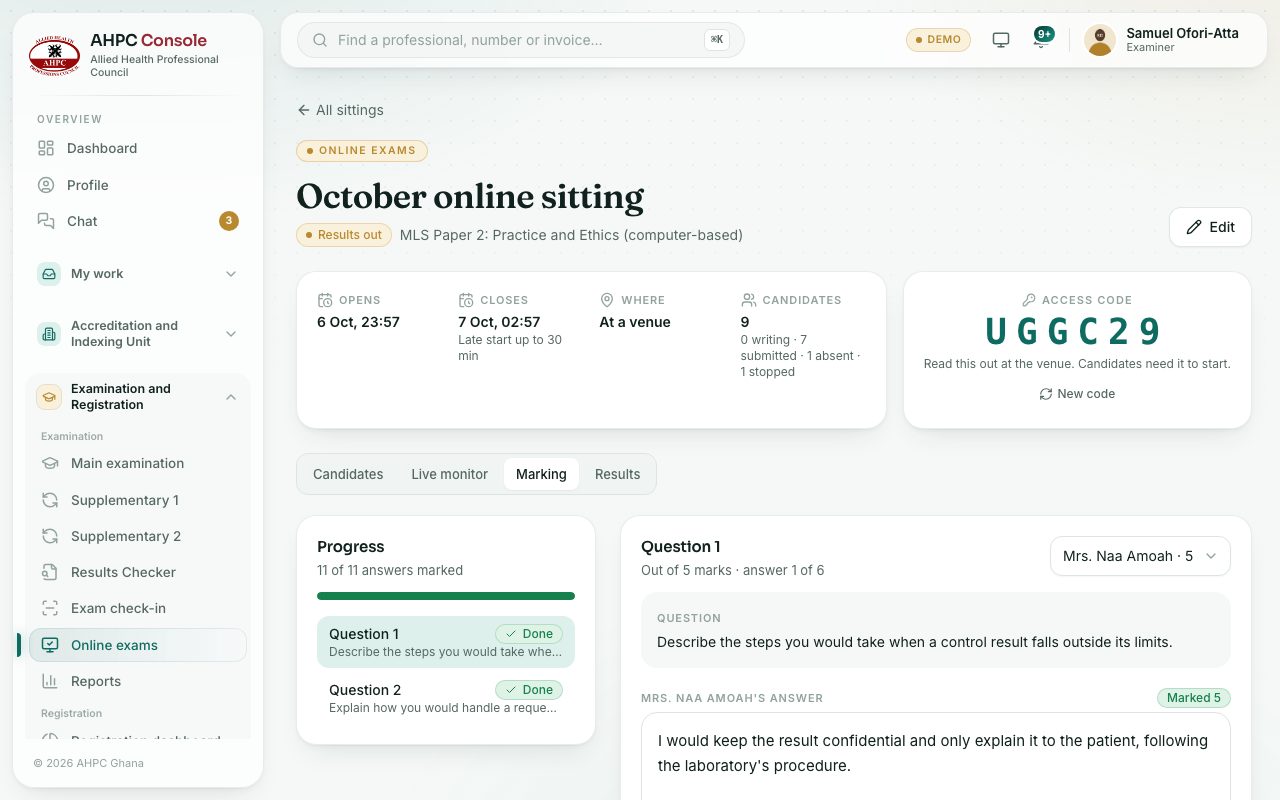
Step by step
- Open the sitting and choose the Marking tab.
- On the left, Progress lists each question with how many answers are marked. Click a question.
- Read the answer. Type the Marks and, if you like, a Comment (optional). Candidates see the comment only if the exam lets them review.
- Press Save mark and go on. The next unmarked answer opens. Use Previous and Next to move about.
Check yourself
Pick an answer for each question, then press Check my answers. Nothing is saved or sent.