
Preview and publish an exam
Draw a sample paper the way a candidate would get it, then publish the exam so sittings can be scheduled.
What you will learn
- Preview a sample paper
- Publish the exam
- Archive or delete an exam
demo.ahpcghana.com/staff/online-exams?tab=exams
Step by step
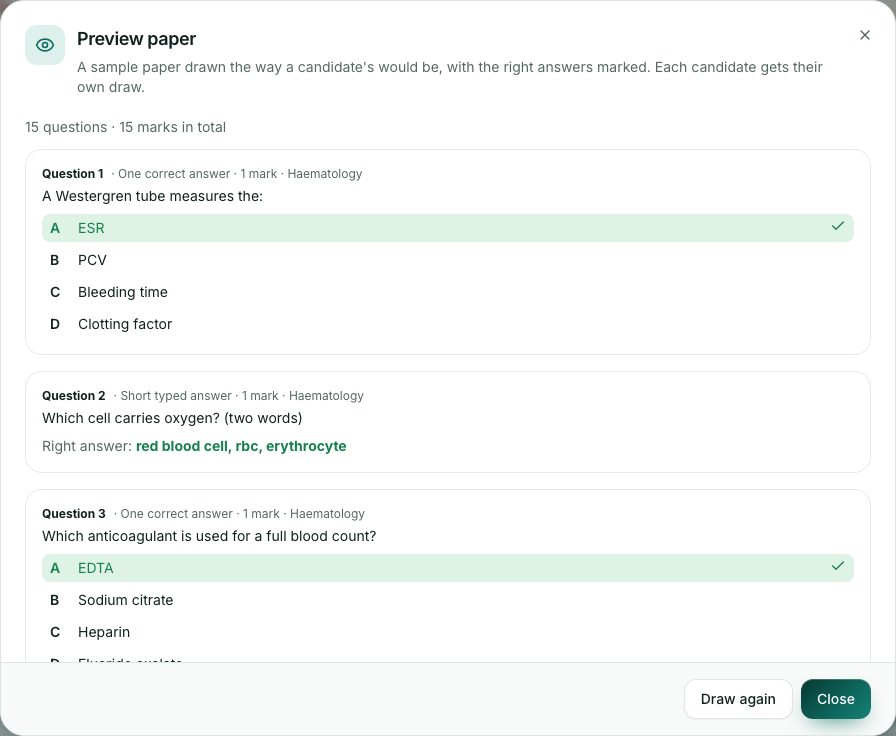
- Open the exam and press Preview paper. You see a sample paper drawn the way a candidate would get it, with the right answers.
- Press Draw again for another sample. If a section is short of questions, the preview says so.
- Press Close.
- When the exam is right, press Publish and confirm. Now you can press Schedule a sitting.
Later on
- Archive a published exam you no longer use: it stays on record with its results, but no new sittings can be scheduled.
- A draft that never had a sitting can be deleted with the bin button. Its questions stay in the bank.
Check yourself
Pick an answer for each question, then press Check my answers. Nothing is saved or sent.