
Results and publishing
See every candidate’s score, download the list, and publish the results, which also go into the licensure results when the exam is linked.
What you will learn
- Read the Results tab
- Know what blocks publishing
- Publish the results
demo.ahpcghana.com/staff/online-exams?tab=sittings
Step by step
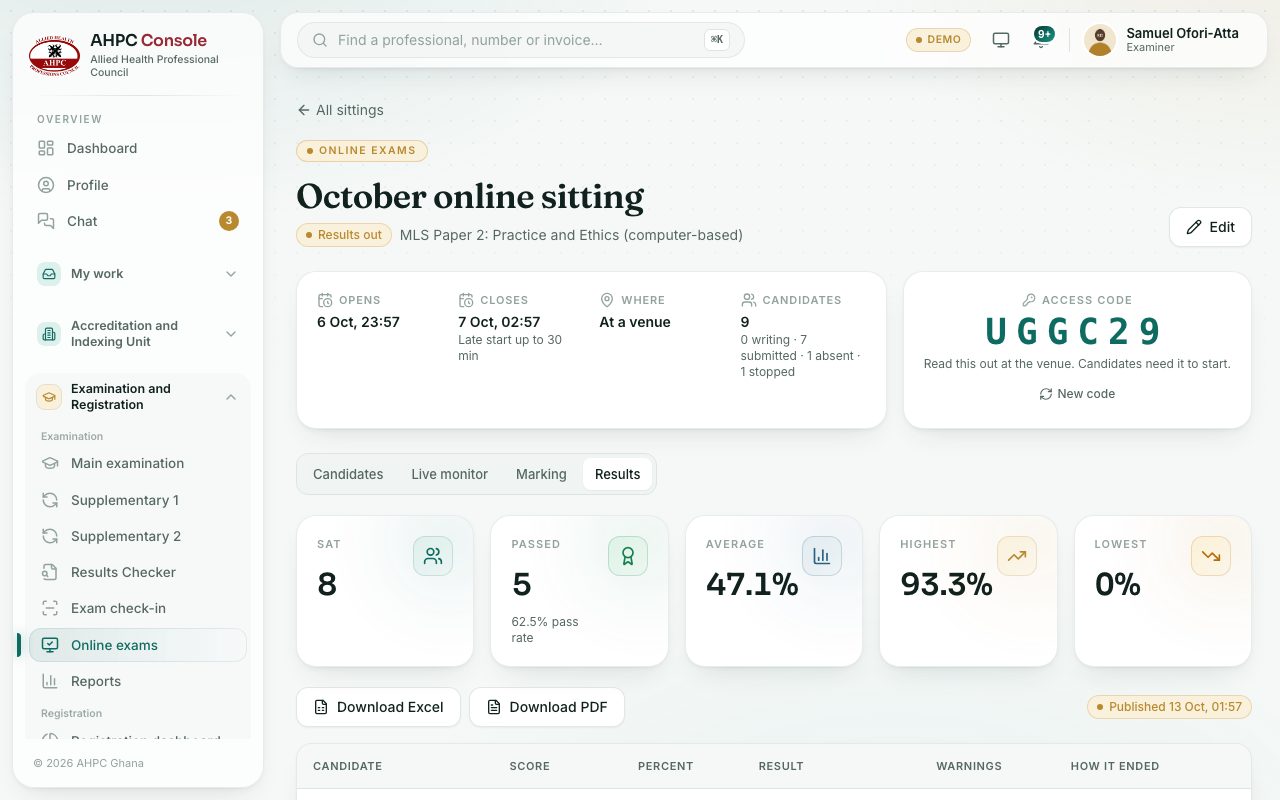
- Open the sitting and choose the Results tab.
- Check the figures: Passed, Average, Highest and Lowest, then the list with each candidate’s score, percent, result, warnings and how the exam ended.
- Press Download Excel or Download PDF for a copy.
- Press Publish results and confirm.
What blocks publishing
A box Results can’t be published yet explains why: candidates are still writing, or written answers are still to be marked on the Marking tab.
Into the licensure results
If the exam is linked to a licensure exam session, publishing fills in each candidate’s score for that paper on the session. The session’s overall results are still published from the session itself (see the Examinations course).
What you will see
- How it ended: By the candidate, Time ran out, Too many warnings or By staff.
- After publishing, a Published badge with the date. Candidates get an SMS and email and see their result in the portal.
Check yourself
Pick an answer for each question, then press Check my answers. Nothing is saved or sent.