
Add candidates to a sitting
Add people one by one, bring in a whole licensure session, internship intake or indexing list, or upload a spreadsheet.
What you will learn
- Add one person
- Add everyone from an existing list
- Upload a list of candidates
- Give a candidate extra time
demo.ahpcghana.com/staff/online-exams?tab=sittings
demo.ahpcghana.com/staff/online-exams?tab=sittings
Step by step
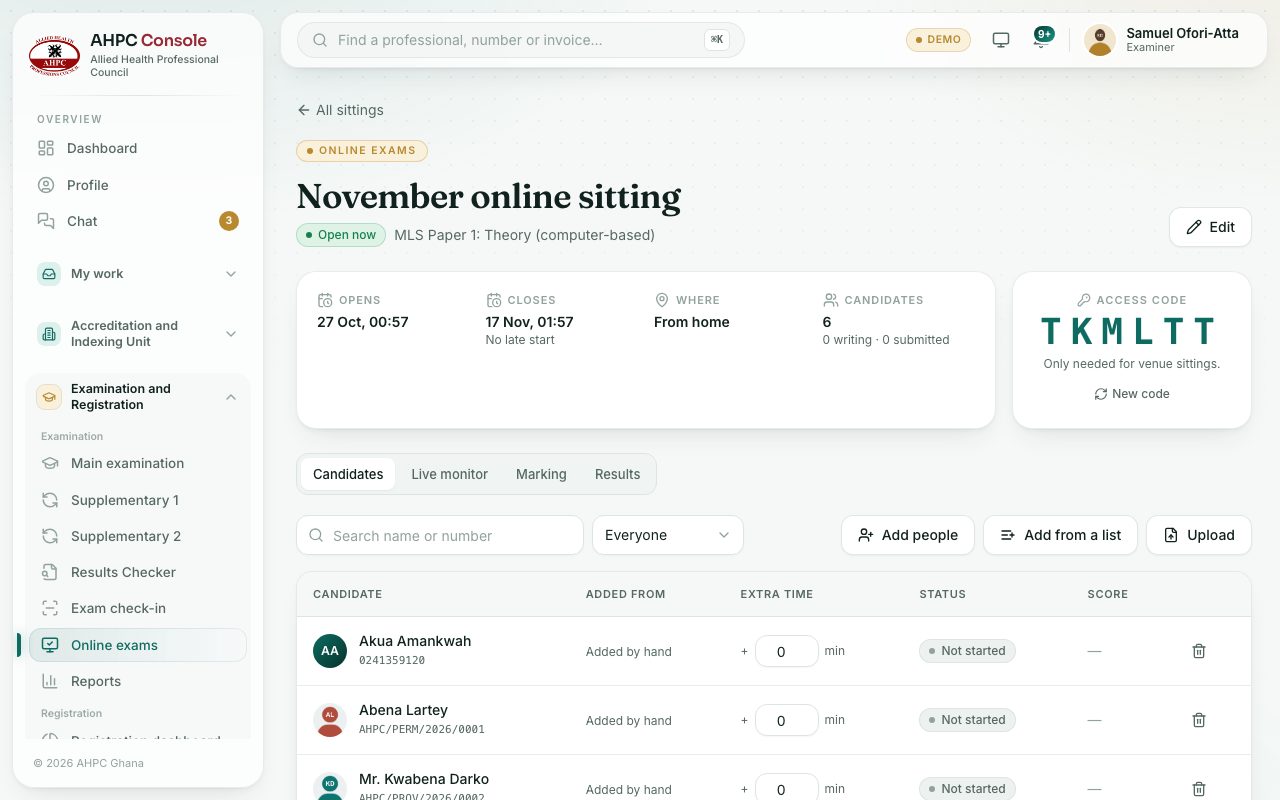
- Open the sitting and choose the Candidates tab.
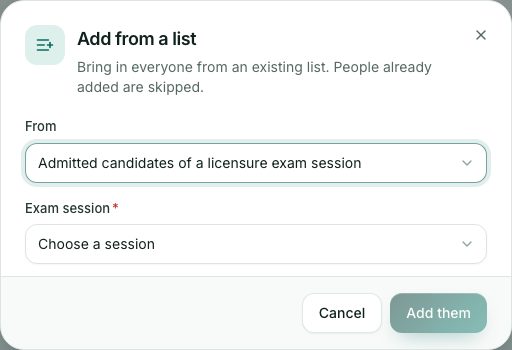
- Add people in one of three ways:
- Add people: search by name, registration number, index number or email, tick them and press Add them.
- Add from a list: choose Admitted candidates of a licensure exam session, Interns finishing an internship intake or Indexed students (pick the school and academic year), then add them. People already added are skipped.
- Upload: an Excel or CSV file with one column, registration_number, index_number or email, one person per row.
- Each person added gets an SMS and email with the date and a reminder to check their computer and try the practice exam.
- To give someone extra time (for example for a disability), type the minutes in the Extra time column of their row and press Enter.
- To take someone off, press Remove. They no longer see the sitting in their portal.
What you will see
- Each candidate’s status: Not started, Writing, Submitted, Absent or Stopped, and how they were added.
Check yourself
Pick an answer for each question, then press Check my answers. Nothing is saved or sent.