
Watch a sitting live
Follow every candidate while they write: camera pictures, answers so far, time left and warnings, and act when something goes wrong.
What you will learn
- Read the candidate cards
- Open a candidate’s details
- Add time, send a message or move them to another device
- Submit or stop an exam, or let a candidate continue
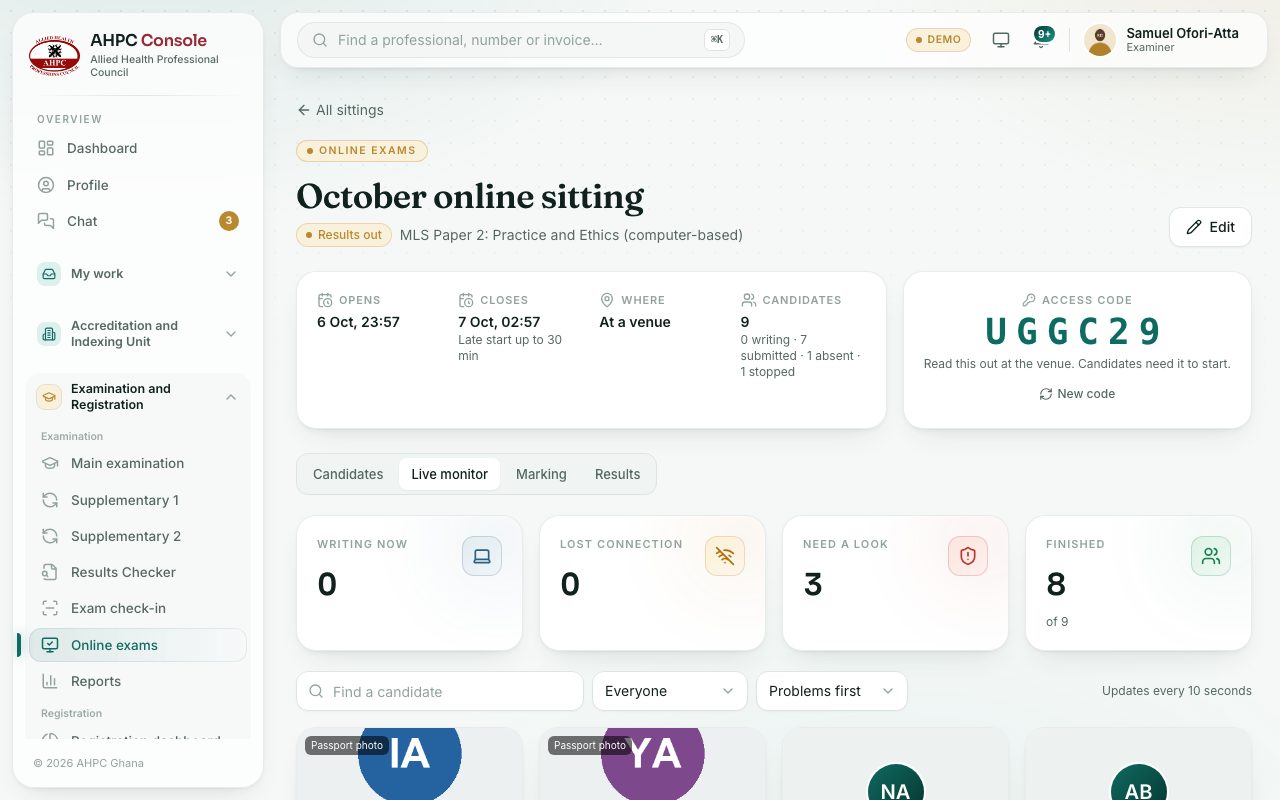
While a sitting is open, its page opens on the Live monitor. It updates every 10 seconds.
demo.ahpcghana.com/staff/online-exams?tab=sittings
demo.ahpcghana.com/staff/online-exams?tab=sittings
Step by step
- Open the sitting. Choose the Live monitor tab if it isn’t open already.
- Narrow the cards with Everyone, Need a look, Writing now, Lost connection, Not started or Finished, and sort with Problems first, Least time left or Name.
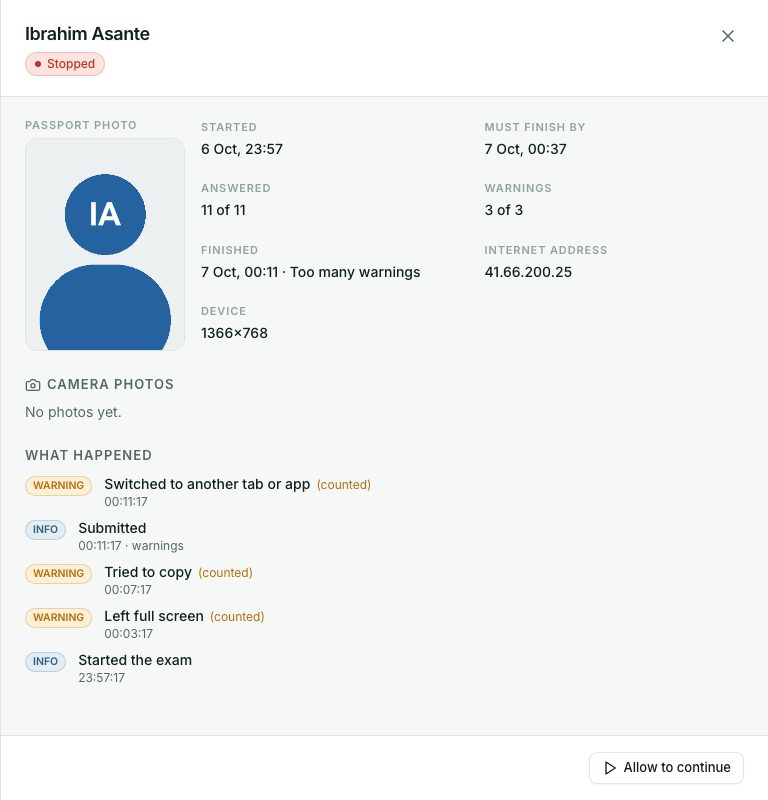
- Click a card to open the candidate’s details: their passport photo, the camera photos with a note on each (for example No one seen or More than one person), messages, and What happened from start to finish.
- Act with the buttons at the bottom when needed:
- Add time: give more minutes. Their timer updates within a few seconds.
- Send message: it shows as a banner on their exam screen.
- Move to another device: lets them open the exam on one new computer if theirs broke. Answers saved so far are kept.
- Submit now: ends the exam and marks what they have answered (a reason is needed).
- Stop the exam: for misconduct. The attempt is kept for review and is not marked as normal (a reason is needed).
- Allow to continue: re-opens a stopped or submitted exam if time is left, when it ended by mistake (a reason is needed).
What you will see
- Each card: the latest camera photo (or the passport photo), a green or red dot for online or not seen for a while, answered so far, time left (amber under 15 minutes, red under 5), and Warnings used out of the limit.
- A red number on the photo when something serious happened.
Check yourself
Pick an answer for each question, then press Check my answers. Nothing is saved or sent.