
Ask for leave, book a vehicle or report a repair
Ask for leave and see your balances, book an official vehicle, and report something in the office that needs fixing.
What you will learn
- Ask for leave and follow its approval
- Book an official vehicle
- Report a repair and follow it
These requests go to General Administration. Leave is approved first by your supervisor, then by HR. Vehicle trips are approved by Transport. Repairs are picked up by the estate team.
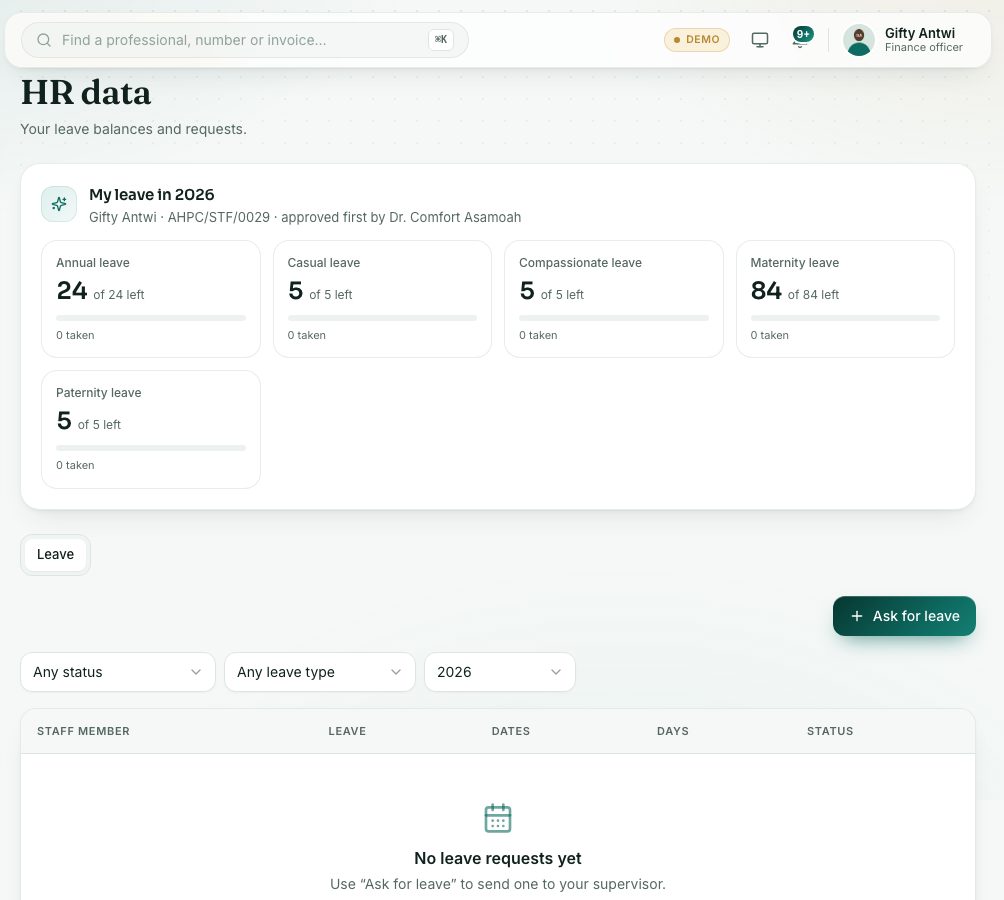
demo.ahpcghana.com/staff/general-admin/hr?my=1
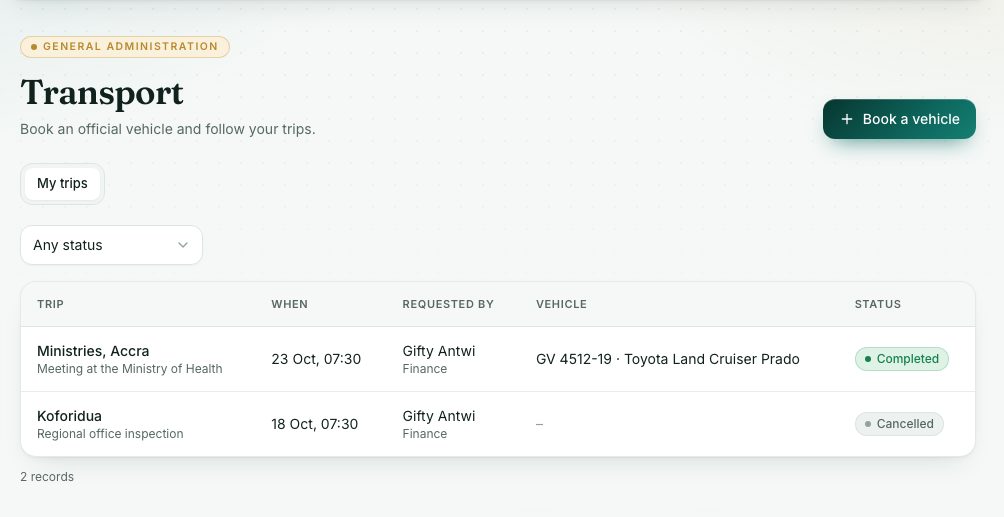
demo.ahpcghana.com/staff/general-admin/transport?my=1
Step by step
- Leave: in the left menu, open My work and press Leave.
- My leave in … shows your balance for each leave type.
- Press Ask for leave. Choose the Leave type, First day and Last day, and fill in Reason, Who covers your work and Contact while away.
- Press Send request. Weekends and public holidays don't count against your days.
- Follow it under My leave. You can press Cancel request while it is waiting, or after approval if the leave hasn't started.
- Vehicle: open My work and press Book a vehicle.
- Press Book a vehicle. Fill in Destination, Leaving, Back, Purpose, Passengers and Who is travelling.
- Press Send request. Follow it on the My trips tab.
- Repair: open My work and press Report a repair.
- Press Report a repair. Choose the Office, say Where in the office and What needs fixing, the Kind of work and How urgent.
- Press Send. Follow it in the list.
What you will see
- Leave statuses: Waiting for supervisor, Waiting for HR, Approved, Not approved, Cancelled.
- Trip statuses: Waiting for approval, Needs a vehicle, Vehicle assigned, Completed, Not approved, Cancelled.
- Repair statuses: Open, Assigned, Done, Cancelled.
- Your personnel file isn't linked to your account yet: ask General Administration to link it before you ask for leave.
Check yourself
Pick an answer for each question, then press Check my answers. Nothing is saved or sent.