
Your assignments (tasks)
See the tasks given to you, update your progress, mark them done, and give tasks to colleagues.
What you will learn
- Find the tasks given to you
- Start a task, save progress and add notes
- Mark a task done
- Give a task to a colleague and follow it up
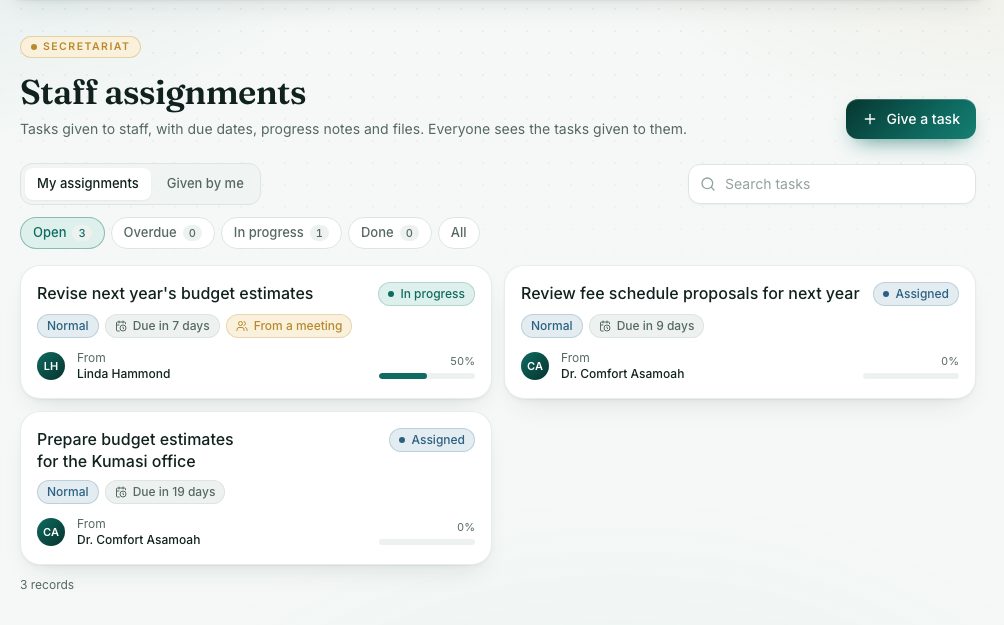
Any staff member can give a task to a colleague. The person is notified at once and sees it under My assignments. Tasks can also come from meeting action items.
demo.ahpcghana.com/staff/secretariat/assignments?my=1
Step by step
- In the left menu, open My work and press My assignments. The My assignments tab shows tasks given to you.
- Use the chips to filter: Open, Overdue, In progress, Done or All.
- Press a task to open it.
- Press Start when you begin. The status changes from Assigned to In progress.
- Move the progress slider and press Save progress.
- Add a file under Attachments or a progress note under Activity.
- When you finish, press Mark done. You can add a short note. The person who gave the task is told.
- To give a task, press Give a task.
- Fill in Task, Details, Give to, Due date and Priority (Low, Normal, High or Urgent).
- Press Give task. Follow it up on the Given by me tab.
What you will see
- A red edge and … days overdue: the due date has passed.
- From a meeting: the task is an action item from a meeting's minutes.
- Statuses: Assigned, In progress, Done, Cancelled.
Check yourself
Pick an answer for each question, then press Check my answers. Nothing is saved or sent.