
Meetings and appointments with the Registrar
See the meetings you are invited to, reply, book a meeting room, and ask for an appointment with the Registrar.
What you will learn
- Find your meetings and reply to an invitation
- Book a meeting and invite colleagues and guests
- Ask to see the Registrar
- Read the minutes and action items
demo.ahpcghana.com/staff/secretariat/meetings?my=1
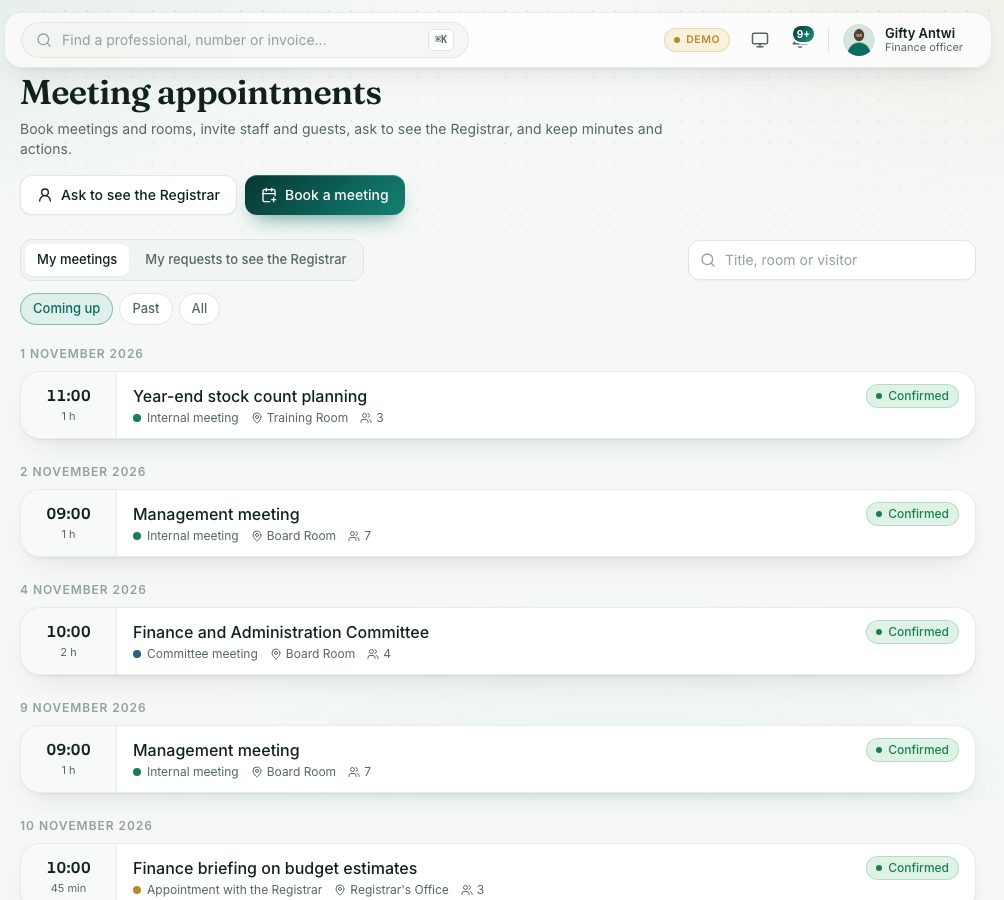
demo.ahpcghana.com/staff/secretariat/meetings?my=1
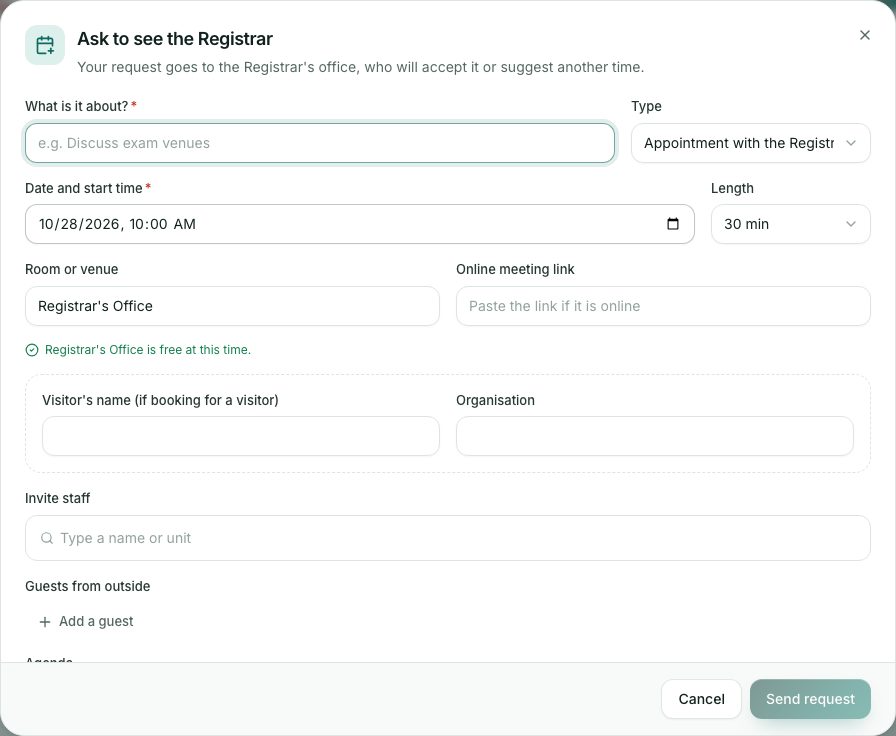
Step by step
- In the left menu, open My work and press Meetings. The page is called Meeting appointments. The My meetings tab lists meetings you organise or are invited to.
- Use Coming up, Past or All to choose which meetings to see.
- Press a meeting to open it. Reply with I'll be there or Can't come.
- To book a meeting, press Book a meeting.
- Fill in Title, Type, Date and start time and Length.
- Type a Room or venue (for example Board Room) or paste an Online meeting link. The form tells you if the room is already booked.
- Add colleagues in Invite staff, and people from outside with Add a guest. Write the Agenda.
- Press Book meeting. Invitations go out at once.
- To see the Registrar, press Ask to see the Registrar.
- Say What is it about?, choose the date, time and length, and press Send request.
- The Registrar's office accepts it, declines it or proposes another time. You are notified. Follow it on the My requests to see the Registrar tab.
What you will see
- Statuses: Waiting for approval, Confirmed, New time, Held, Cancelled.
- … is already booked: choose another room or time.
- After the meeting, the organiser records Minutes and Action items. Actions given to staff become tasks under My assignments.
Check yourself
Pick an answer for each question, then press Check my answers. Nothing is saved or sent.