
Chat with colleagues
Talk to colleagues in channels and direct messages, share files and mention people.
What you will learn
- Read and post in a channel
- Start a direct or group message
- Attach a file and mention a colleague
- Search old messages
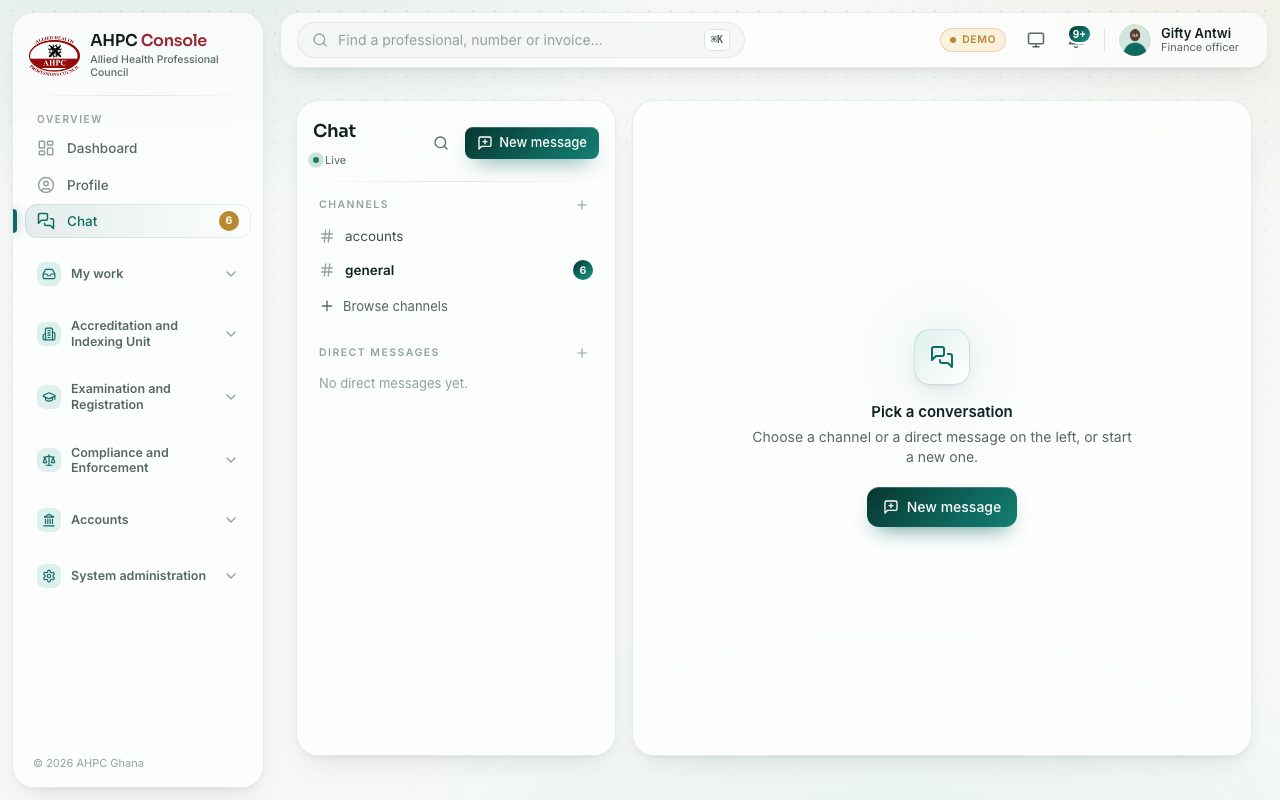
The chat is only for Council staff. Professionals never see it. On your first visit you are put in #general (Council-wide news) and your unit's channel.
demo.ahpcghana.com/staff/chat
Step by step
- In the left menu, under Overview, press Chat. A gold number next to it means unread messages.
- Under Channels, press a channel to open it. To find more, press Browse channels and then Join next to a public channel.
- To message one person, press New message, pick a colleague and press Start conversation.
- Pick up to seven people for a group message, then press Start group message.
- Type in the box at the bottom and press Enter to send.
- Shift + Enter starts a new line.
- Type @ and a name to mention a colleague. They are told.
- Press the paperclip to attach a file of up to 10 MB (PDF, pictures, Word, Excel, PowerPoint, text or CSV).
- Point at a message to see its small buttons: React adds an emoji. On your own messages, Edit (pencil) and Delete (bin) appear too. A deleted message shows as "message deleted" for everyone.
- To find an old message, press the magnifying glass next to New message and type at least two letters.
What you will see
- Live under the Chat heading: messages arrive as they are sent. Reconnecting…: the connection dropped; it comes back by itself.
- This channel is archived.: you can read it but no one can post.
- A green dot on a colleague's picture: they are online.
Check yourself
Pick an answer for each question, then press Check my answers. Nothing is saved or sent.