
Unusual patterns in the results
Let the portal look for results worth a second look, such as neighbours with almost the same marks, then decide on each one.
What you will learn
- Run the check for unusual patterns
- Know what is checked
- Mark a pattern as fine or refer it to the exam board
- Upload answer sheets for a closer check (optional)
These are patterns worth a second look, not proof of cheating. They never hold back results. A number on the tab shows how many still need a look.
demo.ahpcghana.com/staff/exams?status=results_published
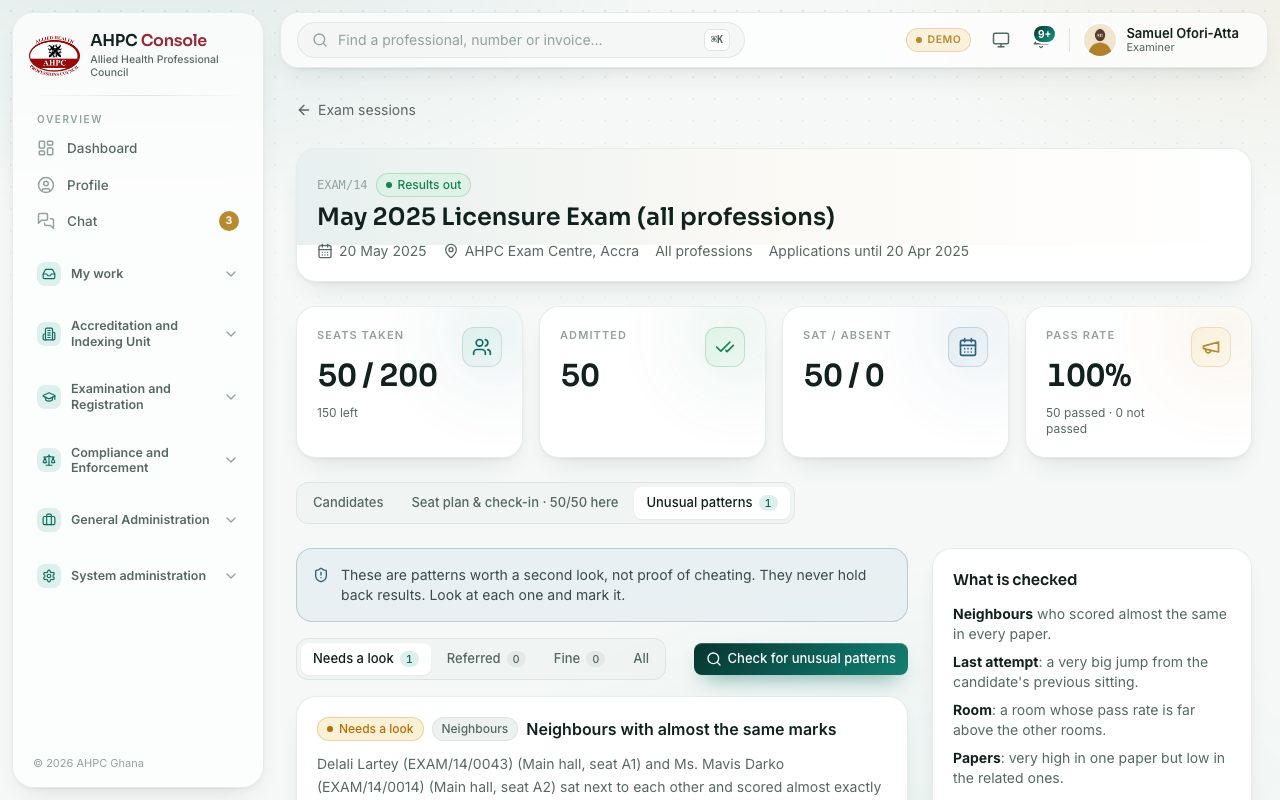
Step by step
- Enter the results first (typed in or uploaded).
- Open the session and choose the Unusual patterns tab.
- Press Check for unusual patterns. A message says how many things are worth a look, or “Nothing unusual found”.
- Read each card: what kind of pattern it is, and a short explanation with the candidates and figures.
- Decide on each one:
- Looked at, fine: add a note if you like and press Save.
- Refer to the exam board: type Why it goes to the board and press Save.
- Reopen puts a decided card back in Needs a look.
- Use the tabs Needs a look, Referred, Fine and All to see the cards by decision.
What is checked
- Neighbours who scored almost the same in every paper.
- Last attempt: a very big jump from the candidate’s previous sitting.
- Room: a room whose pass rate is far above the other rooms.
- Papers: very high in one paper but low in the related ones.
- Answer sheets (if uploaded): neighbours sharing many identical wrong answers, or the same letters on different paper versions.
Answer sheets (optional)
In the Answer sheets box, press Upload answer sheets and choose a CSV with exam_number, version and answers: the letters as written on the sheet, one per question, - for no answer. The sheets are checked straight away.
Check yourself
Pick an answer for each question, then press Check my answers. Nothing is saved or sent.