
Rooms, seat plan and paper versions
Add the exam rooms, choose how many paper versions to use, and let the portal seat every admitted candidate.
What you will learn
- Add the rooms with their rows and seats
- Choose the number of paper versions
- Make the seat plan
- Print the seat plan, the door list, booklets and answer keys
A seat plan makes copying harder. The portal seats candidates at random, keeps people from the same school apart, and gives neighbours different paper versions (A, B, C…). Each candidate’s room, seat and version are printed on their admission slip.
Step by step
- Open the session and choose the Seat plan & check-in tab.
- In the Rooms box on the right, press Add a room for each room:
- Type the Room name, for example Main hall.
- Type the number of Rows (front to back) and Seats in each row (left to right).
- Choose the number of Paper versions: 1 means everyone gets the same paper; 4 gives versions A to D.
- Press Save rooms. The box shows how many seats you have; add seats if there are more admitted candidates than seats.
- Press Make the seat plan. A message says how many candidates were seated.
- Press Seat plan PDF for the room plans, or Door list for an alphabetical list to put up at the entrance.
Shuffled question lists (optional)
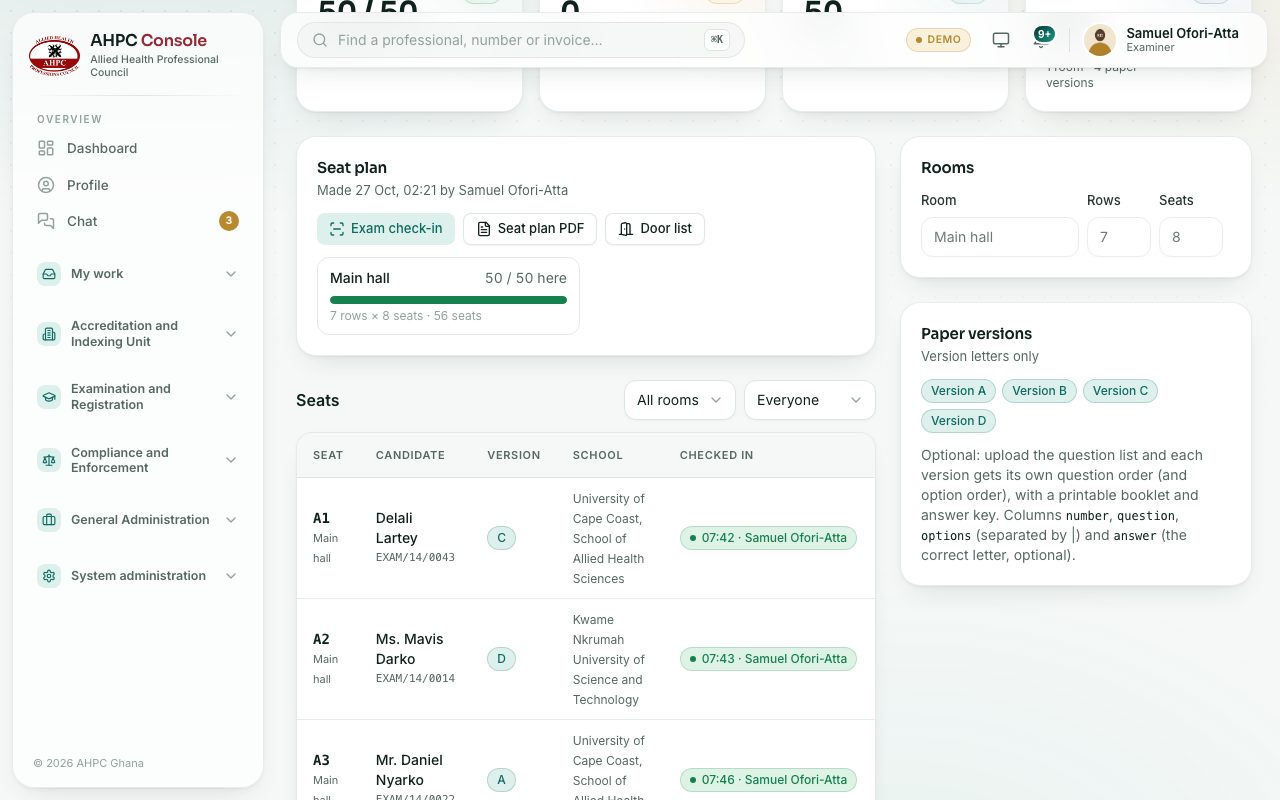
If you upload the question list in Paper versions (Upload question list), each version gets its own order of questions and answer options. Then each version has a Booklet to print and an Answer key for marking. The file needs the columns number, question, options (separated by |) and answer (the correct letter, optional).
Changing the plan
- Candidates admitted after the plan was made have no seat. A yellow box warns you: press Make the seat plan again.
- Making it again gives everyone a new seat and version, so tell candidates to download their admission slip again.
- Saving changed rooms clears the plan: make it again afterwards.
- Once check-in has started, the plan is fixed.
What you will see
- The figures Checked in, Not here yet, Seated and Seats in the rooms.
- Each room as a card with how many are here out of how many are seated.
- The Seats list: seat (for example A1), room, candidate, exam number, version, school and check-in time. Filter it with All rooms and Everyone.
Check yourself
Pick an answer for each question, then press Check my answers. Nothing is saved or sent.