
Issue staff ID cards
Issue secure staff identity cards with the person's photo, print them, and reissue or revoke them when needed.
What you will learn
- Issue a card and add the staff photo
- Preview both sides with Turn over and download the card PDF
- Read card statuses and find cards expiring soon
- Reissue or revoke a card
Each card carries a signed QR code. Anyone can scan it to see the photo and status and check the card is genuine. A tamper-check code on the card must match its details. A card is valid for three years unless you choose another date.
demo.ahpcghana.com/staff/secretariat/id-cards
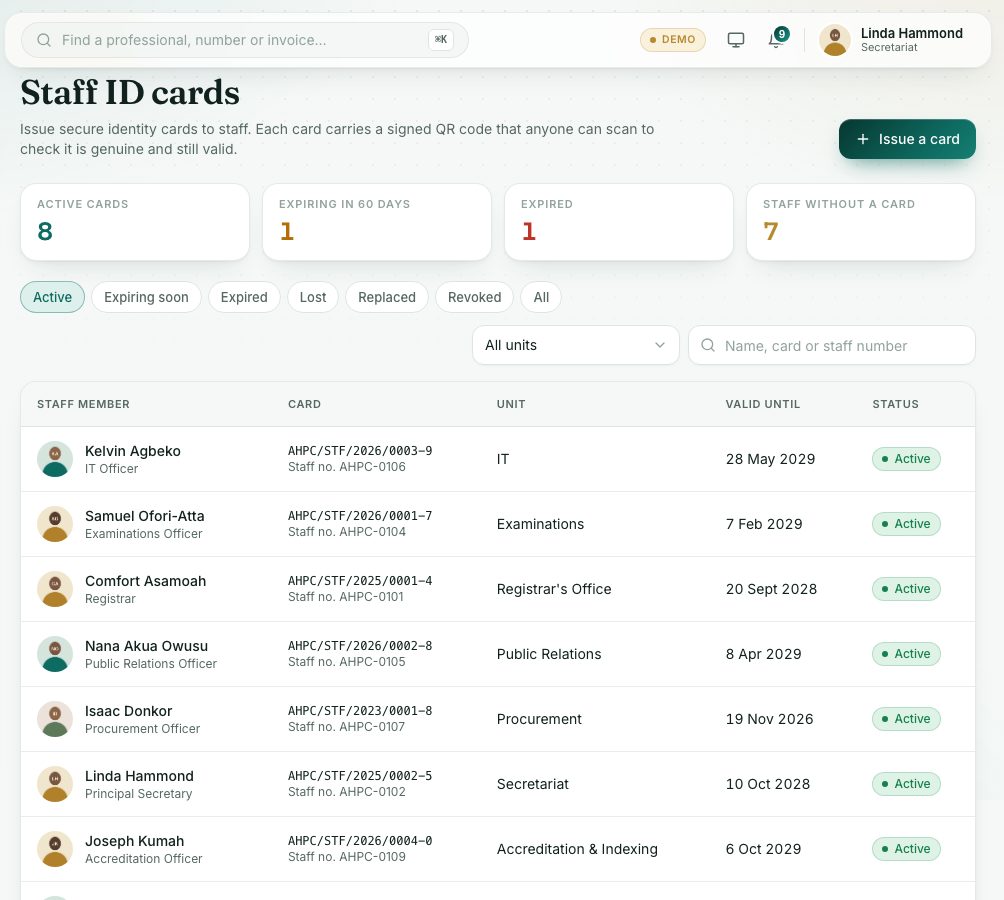
demo.ahpcghana.com/staff/secretariat/id-cards
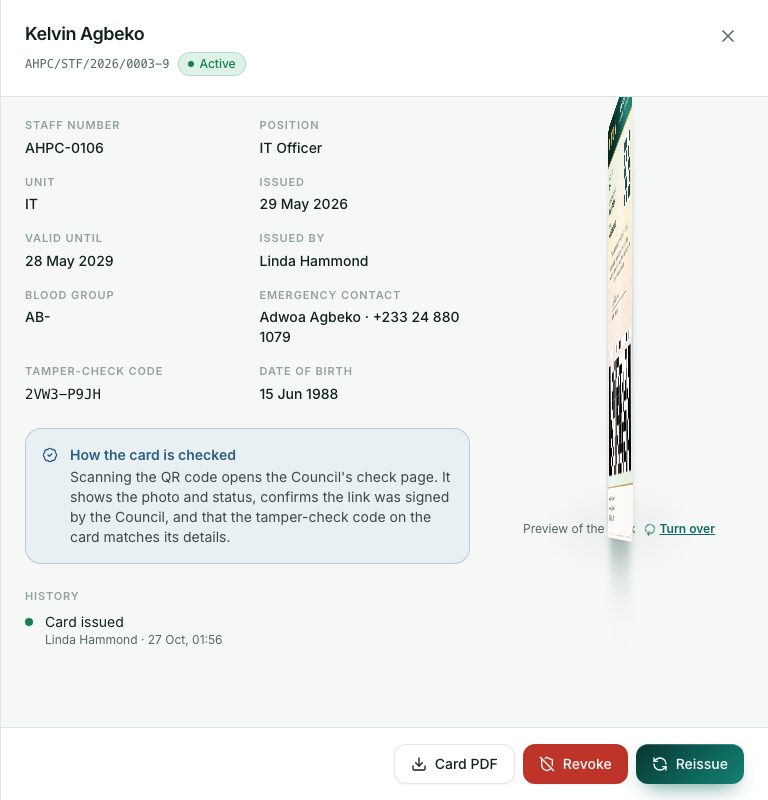
Step by step
- In the left menu, open Secretariat and press Staff ID cards.
- The cards at the top show Active cards, Expiring in 60 days, Expired and Staff without a card.
- Press Issue a card and pick the staff member.
- If they have no picture, add one under Profile picture (JPG or PNG, up to 3 MB), or ask them to add it on My profile.
- Fill in Staff number (for example AHPC-0142) and Position. Check the Unit.
- Leave Valid until empty for three years. Add Date of birth, Sex, Blood group (back of card), Emergency contact (back of card) and Emergency phone if you have them.
- Watch the preview on the right. Press Turn over to see the back.
- Press Issue card.
- To print, open the card and press Card PDF, then print the PDF.
- If a card is damaged, lost, out of date or the details changed, open it and press Reissue.
- Say Why is a new card needed?. Tick The old card was lost if so. Tick Change the details printed on the card to edit them.
- Press Issue new card. The new card has a new number and QR code. The old one stops working straight away.
- If someone leaves the Council, open their card and press Revoke. Say why. Anyone who scans it is told it is not valid.
What you will see
- Statuses: Active, Expired, Replaced, Reported lost, Revoked. A card that isn't valid shows a red stamp on the preview.
- Already has an active card: reissue the existing card instead of issuing a new one.
- History on each card: who issued, replaced or revoked it, and when.
Check yourself
Pick an answer for each question, then press Check my answers. Nothing is saved or sent.