
Memos for the whole Council
See every memo, send Council-wide memos to whole units or all staff, and check who has read and acknowledged them.
What you will learn
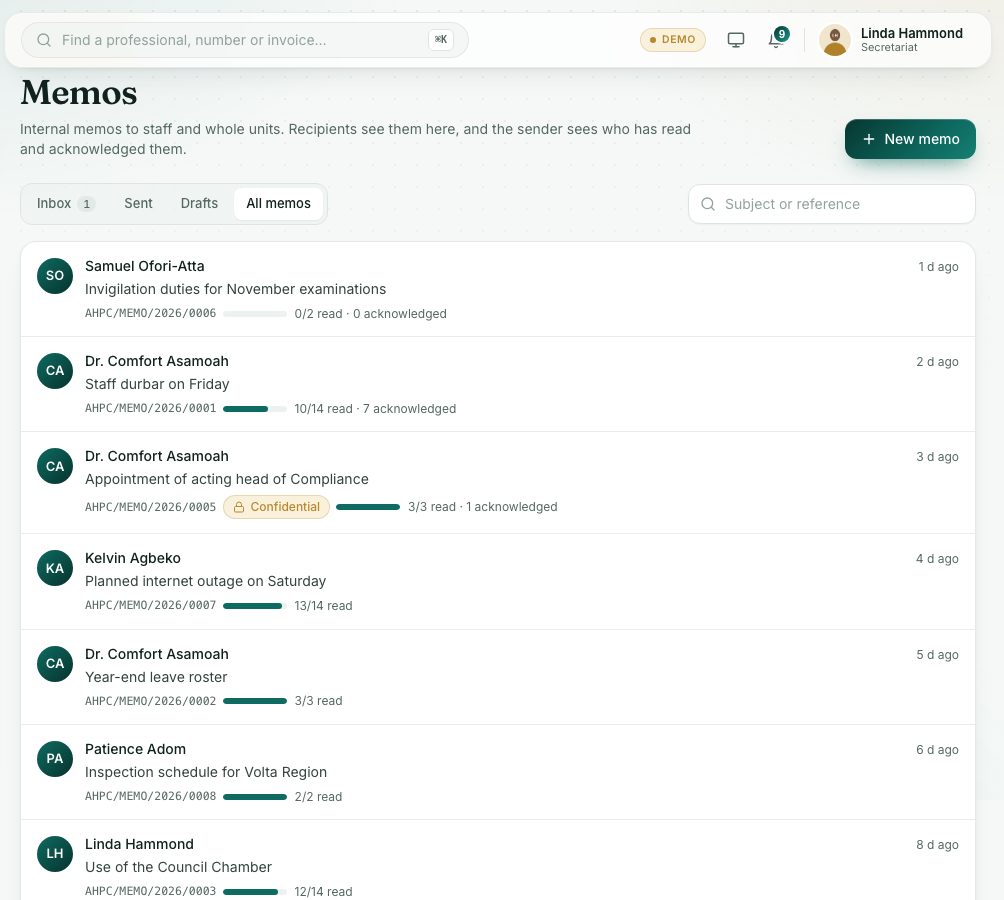
- See all memos sent in the Council
- Send a memo to all staff or whole units
- Follow the read receipts
demo.ahpcghana.com/staff/secretariat/memos?tab=all
demo.ahpcghana.com/staff/secretariat/memos?tab=all
Step by step
- In the left menu, open Secretariat and press Memos. Open the All memos tab.
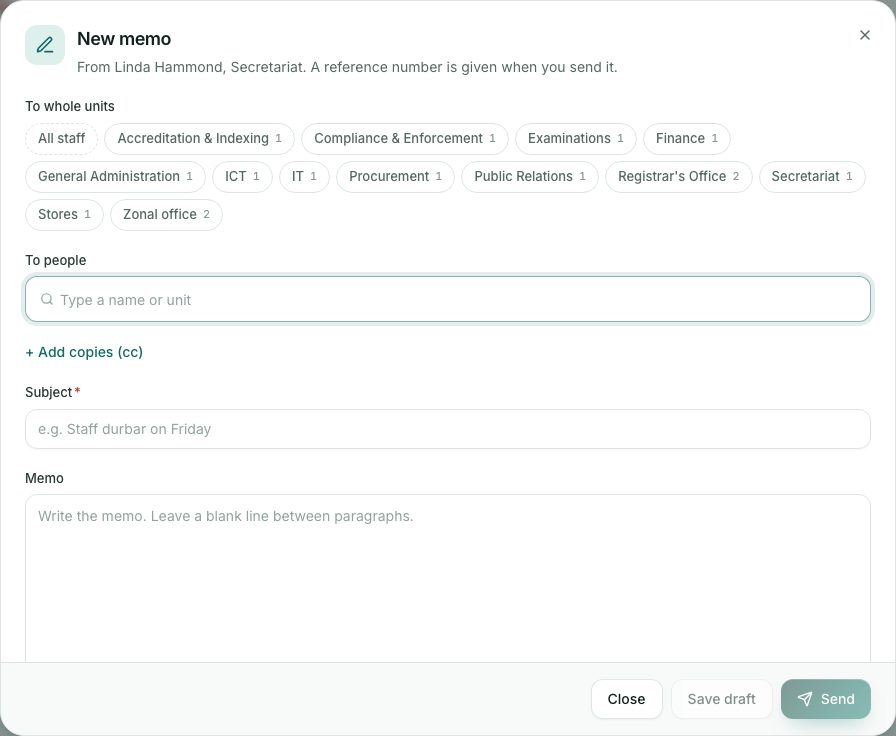
- Press New memo.
- Under To whole units, press All staff or the units. Add named people in To people, and copies with + Add copies (cc).
- Fill in Subject and Memo, and choose the Confidentiality.
- Tick Ask recipients to acknowledge for anything staff must confirm, such as a new policy.
- Press Save draft, add files if needed, then press Send. It gets a reference number.
- Open a sent memo to see Read receipts. Switch to Not read to see who still has to read it, with their unit.
- Press Print (PDF) for the file copy. It carries a light watermark with your name and the date.
What you will see
- In the list: … read · … acknowledged for each memo.
- Each person: Not read, Read or Acknowledged, with the time.
- via … next to a name: they got it because their unit was addressed.
Check yourself
Pick an answer for each question, then press Check my answers. Nothing is saved or sent.