
Staff assignments for the whole Council
See every task given to staff, filter by unit, follow up overdue work and give tasks on behalf of management.
What you will learn
- See all assignments and filter by unit
- Find overdue tasks
- Give, edit, cancel or reopen a task
demo.ahpcghana.com/staff/secretariat/assignments?tab=all
Step by step
- In the left menu, open Secretariat and press Staff assignments.
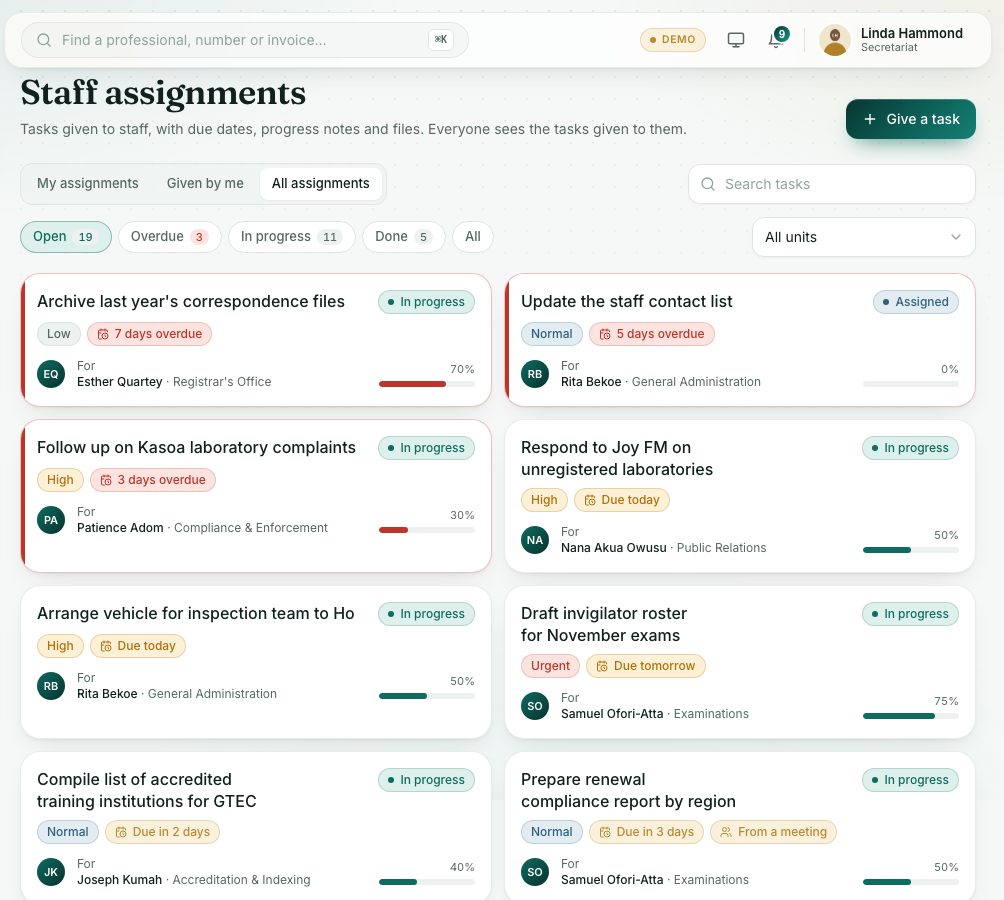
- Open the All assignments tab. Choose a unit in All units to see one unit's tasks.
- Press the Overdue chip to see what is late. Each card shows the person, the priority, the due date and the progress.
- Press Give a task to give one.
- Fill in Task, Details, Give to, Due date and Priority, and press Give task. The person is notified at once.
- Open a task to follow it up: read the Activity, add a note, or press Edit, Cancel task or Reopen.
What you will see
- Statuses: Assigned, In progress, Done, Cancelled.
- From a meeting: the task came from a meeting's action items.
Check yourself
Pick an answer for each question, then press Check my answers. Nothing is saved or sent.