
Review an inspection and follow it up
Set the outcome of an inspection, plan the re-inspection, record the follow-up visit and mark issues resolved.
What you will learn
- Review an inspection: compliant, partly compliant or non-compliant
- Set a re-inspection date
- Record the re-inspection
- Mark the issues resolved
demo.ahpcghana.com/staff/compliance
Step by step
- Open Compliance and Enforcement → Compliance records and press Awaiting review.
- Press an inspection. Read the Findings and Recommendations.
- Press Review and choose the outcome:
- Compliant: meets the standards. Comments are optional.
- Partly compliant: some things to correct. If no date is set yet, the portal suggests a re-inspection 90 days from today.
- Non-compliant: serious failings. If no date is set yet, the portal suggests 30 days from today.
- For partly or non-compliant, write What must be corrected and keep a Re-inspection date. Both are required.
- Press Save outcome.
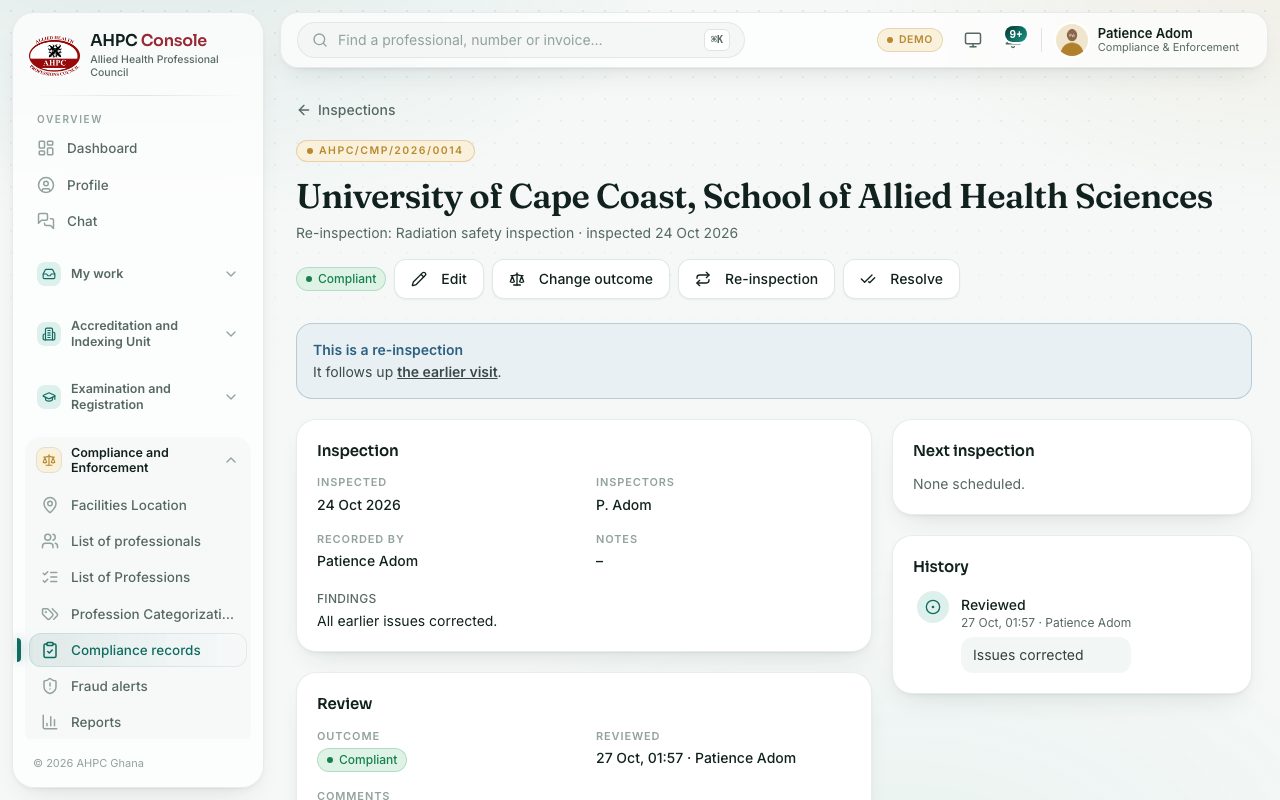
- When the follow-up visit happens, open the inspection and press Re-inspection. Enter the Date of the visit, Inspectors, Findings and Recommendations, then press Record. The re-inspection is a new record that waits for review.
- Once the problems are corrected, press Resolve, say how it was resolved, and press Mark resolved.
What you will see
- Outcome labels: Awaiting review, Compliant (green), Partly compliant (gold) and Non-compliant (red). A green Resolved label is added once resolved.
- Next inspection labels: Scheduled, Due soon, Overdue and Re-inspected.
- A re-inspection says This is a re-inspection and links to the earlier visit. Other inspections of this place lists all visits.
- Press Change outcome to correct a review.
Check yourself
Pick an answer for each question, then press Check my answers. Nothing is saved or sent.