
Record an inspection
Enter an inspection of a facility, institution or programme, with the findings and recommendations. A reviewer then sets the outcome.
What you will learn
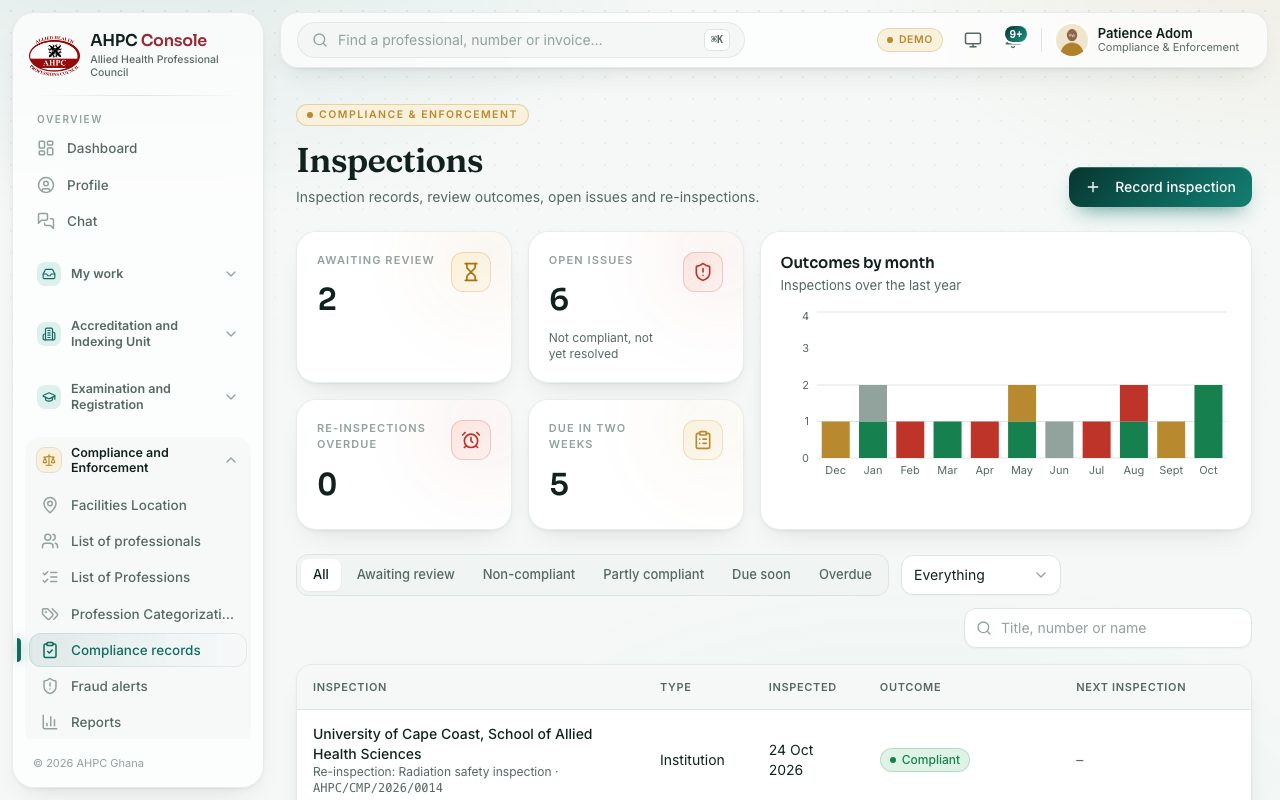
- Open the Inspections page and read the counters
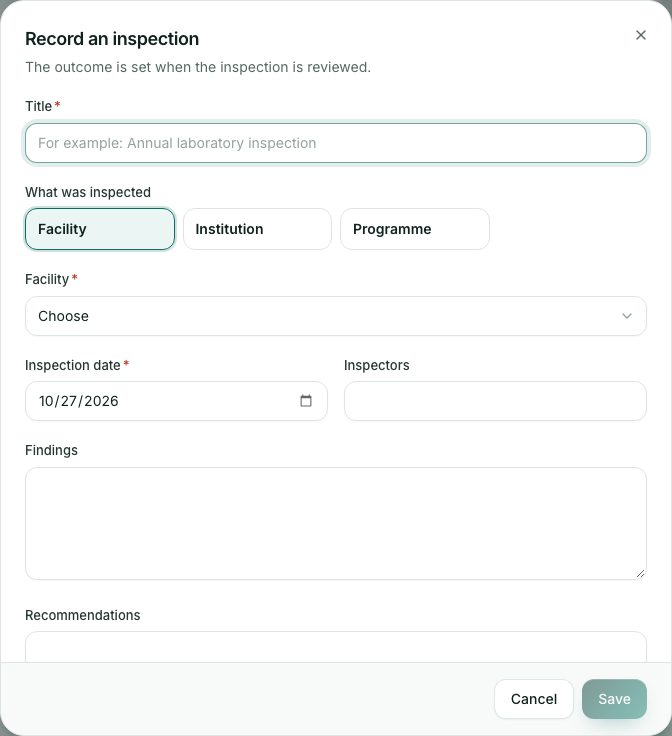
- Record a new inspection
- Edit or delete an inspection before it is reviewed
Recording an inspection never sets its outcome. The outcome is set when the inspection is reviewed, and the portal records who reviewed it.
demo.ahpcghana.com/staff/compliance
demo.ahpcghana.com/staff/compliance
Step by step
- Open Compliance and Enforcement → Compliance records. The page is called Inspections.
- Press Record inspection.
- Type a Title, for example Annual laboratory inspection.
- Under What was inspected, choose Facility, Institution or Programme, then pick or type which one.
- Enter the Inspection date (not in the future) and the Inspectors.
- Write the Findings and Recommendations.
- Add the Next inspection date if one is planned, and any Notes.
- Press Save. The inspection opens with a number such as AHPC/CMP/2026/0015 and the note Waiting for review.
What you will see
- The counters: Awaiting review, Open issues (not compliant, not yet resolved), Re-inspections overdue and Due in two weeks. Press one to filter the list.
- Tabs: All, Awaiting review, Non-compliant, Partly compliant, Due soon and Overdue. The box next to them picks facilities, institutions or programmes.
- Until it is reviewed, you can Edit the inspection or delete it with the bin button.
Check yourself
Pick an answer for each question, then press Check my answers. Nothing is saved or sent.