
Set the fees (Bill Configuration)
Bill Configuration holds the fee schedule: what each fee costs, for all professions or for one, with an optional late penalty and dates it applies.
What you will learn
- Read the fee schedule
- Add or change a fee for all professions or one profession
- Set a late penalty and the dates a fee applies
- Switch a fee off
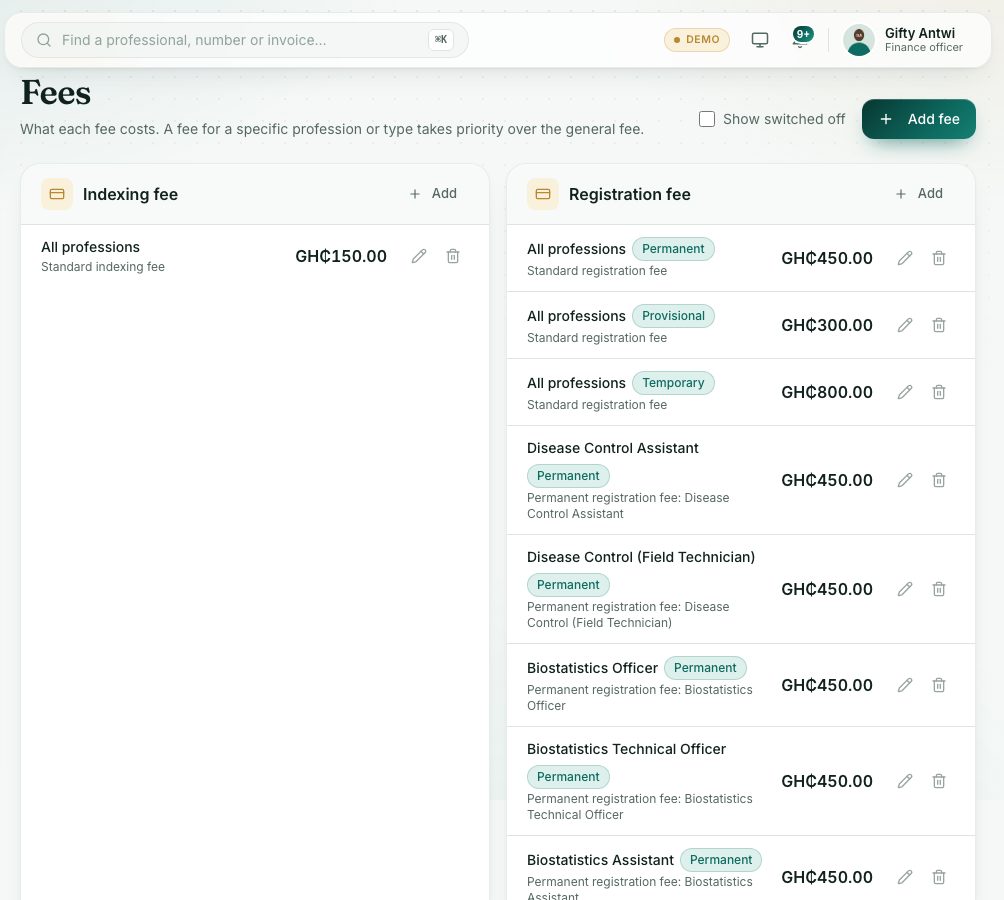
The page is titled Fees. Each kind of fee has its own card. Inside a card, a fee for a specific profession or type takes priority over the general one for All professions.
demo.ahpcghana.com/staff/fees
Step by step
- In the left menu, open Accounts → Other payments → Bill Configuration.
- Each row shows the profession (or All professions), a badge for the type it applies to, its dates or Always applies, the amount, and any late penalty in amber.
- To add a fee, press Add fee at the top, or Add on a card.
- Fill in the form:
- Fee and Profession (leave All professions for the general fee).
- Applies to, for fees that have types: for example Provisional, Temporary or Permanent for the registration fee, or First sitting and Resit for the exam fee.
- Amount (GH₵) and, if you charge one, Late penalty (GH₵).
- Applies from and Applies until (optional).
- Description: shown on the invoice.
- Switched on: untick to keep the fee but stop using it.
- Press Save.
- To change a fee, point at its row and press the pencil. To remove it, press the bin.
What you will see
- Fee saved after you save.
- When you remove a fee that is already on invoices, it is switched off instead (Fee is in use, so it was switched off). Tick Show switched off to see those.
- At the bottom, No fee set for: … lists kinds of fee with no amount. Without a fee these are free (renewals use the renewal period's fee).
Check yourself
Pick an answer for each question, then press Check my answers. Nothing is saved or sent.