
Accounting Reports and exports
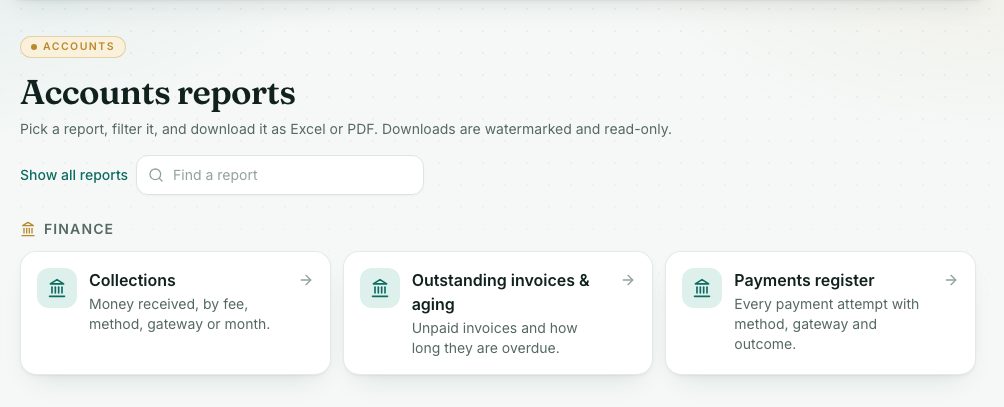
Accounting Reports gathers the three finance reports: Collections, Outstanding invoices & aging, and the Payments register. Each one filters on screen and downloads as PDF or a read-only Excel file.
What you will learn
- Open the Accounts reports
- Find who still owes money and for how long
- Download the payments register for a period
- Know which other pages export
demo.ahpcghana.com/staff/reports?only=collections,outstanding,payments&for=Accounts
Step by step
- In the left menu, open Accounts → Other payments → Accounting Reports. The page is titled Accounts reports.
- Pick a report:
- Collections: money received, by fee, method, gateway or month.
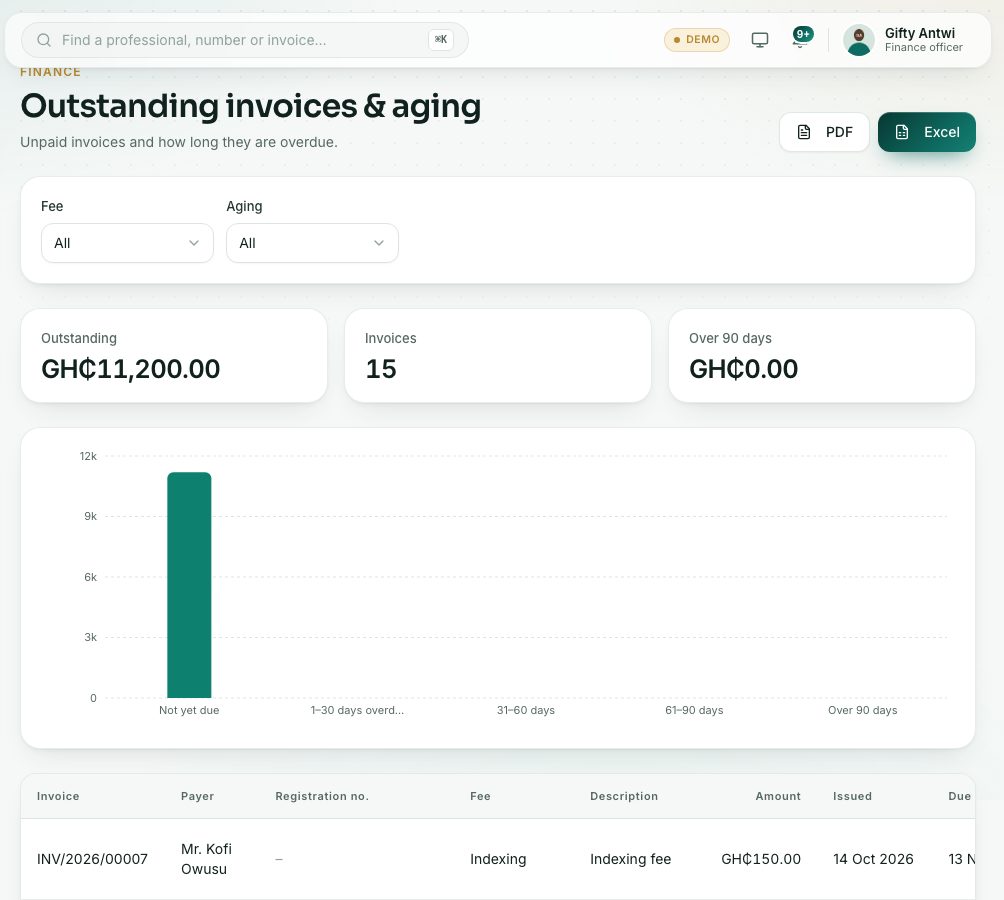
- Outstanding invoices & aging: unpaid invoices and how long they are overdue. Filter by Fee and Aging: Not yet due, 1–30 days overdue, 31–60 days, 61–90 days or Over 90 days.
- Payments register: every payment attempt with method, gateway and outcome. Filter by Status, Method, Gateway and dates.
- Set the filters. The totals and the table change straight away.
- Press PDF or Excel to download.
- Press Show all reports at the top of the list to see every report your role can open.
demo.ahpcghana.com/staff/reports/outstanding
Watermarked, read-only downloads
Every download carries the Council’s name, your name and the date and time across the page. PDF files are watermarked on every page; Excel files open read-only, so you can read, sort and filter them but not change them. There are no CSV downloads any more: a plain CSV file can’t be protected, so reports come as locked Excel files instead.
What you will see
- Downloads include every row that matches, not just the page on screen.
- The invoices pages and Live Payments also have Excel and PDF for exactly what you filtered there.
Check yourself
Pick an answer for each question, then press Check my answers. Nothing is saved or sent.