
Cancel an invoice or raise a one-off invoice
Cancel an invoice that is no longer owed, or raise an invoice by hand for a one-off charge to a professional or an organisation.
What you will learn
- Cancel an unpaid invoice with a reason
- Raise a new invoice for a professional or someone else
- Let the fee schedule set the amount
demo.ahpcghana.com/staff/invoices
Cancel an invoice
Open the invoice and press Cancel invoice. Type the reason, then press Cancel invoice again in the box. The professional is no longer asked to pay it, and any payment still pending on it is marked failed.
Only an Unpaid or Overdue invoice can be cancelled. A paid one can't: reverse the payment first.
Raise a one-off invoice
- Open any invoice list, for example Accounts → Other payments → Verification payments.
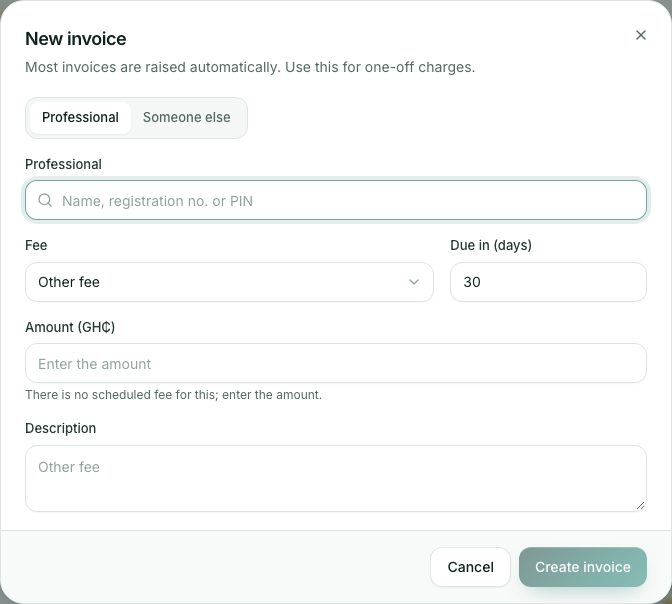
- Press New invoice at the top right.
- Choose who pays:
- Professional: type a name, registration number or PIN and pick the person.
- Someone else: type the Name or organisation, and an Email and Phone if you have them.
- Choose the Fee. Set Due in (days) (30 unless you change it).
- Leave Amount (GH₵) empty to use the amount in the fee schedule. If there is no scheduled fee, the box says so and you type the amount.
- Add a Description if the fee name isn't clear enough. It appears on the invoice.
- Press Create invoice. The new invoice opens so you can check it.
What you will see
- You see Invoice … created with the new invoice number.
- A professional sees the invoice in their portal under Invoices & payments and can pay it online.
Check yourself
Pick an answer for each question, then press Check my answers. Nothing is saved or sent.