
Track files and payment vouchers
The Document Tracker records where every paper file, letter or payment voucher is, who holds it and for how long. Register what reaches Accounts, acknowledge what is sent to you, and pass it on with a minute.
What you will learn
- Open the Accounts Document Tracker
- Register a document and print its tracking slip
- Acknowledge, minute, forward and close a document
demo.ahpcghana.com/staff/document-tracker?unit=accounts
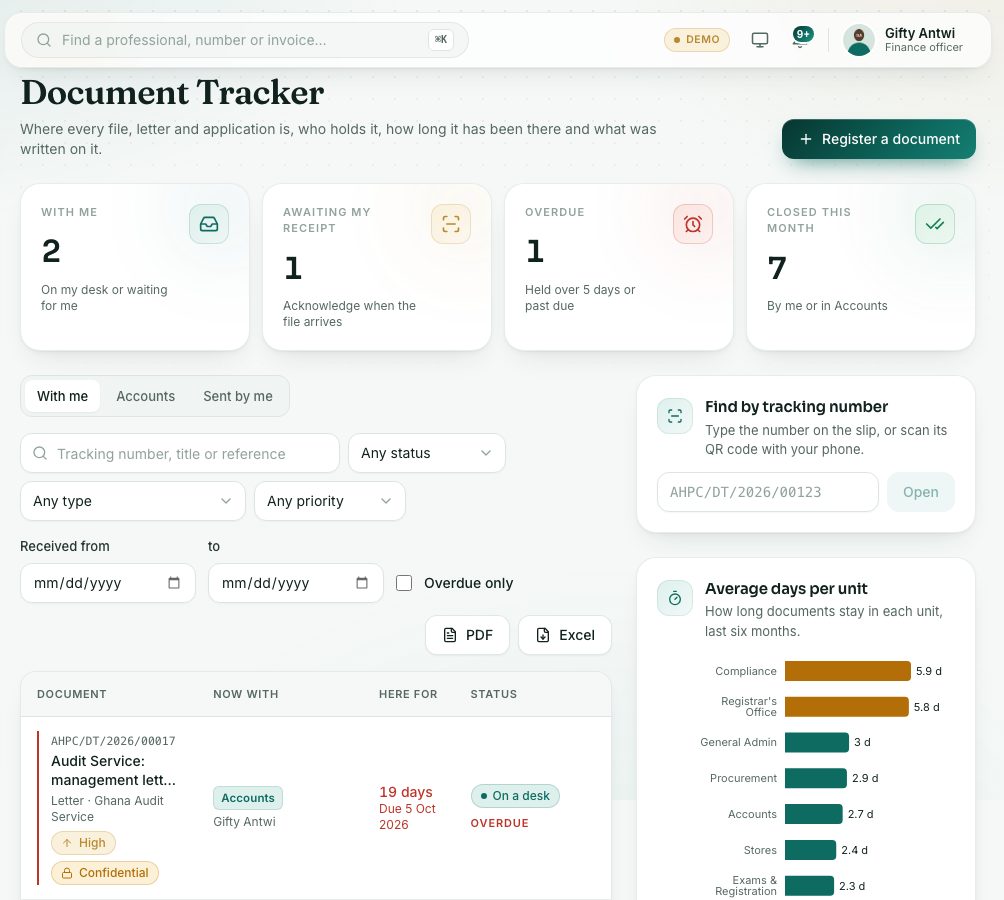
Step by step
- In the left menu, open Accounts → Other payments → Document Tracker.
- Read the four figures: With me, Awaiting my receipt, Overdue and Closed this month. Use the tabs With me, Accounts and Sent by me.
- To register a document that has arrived, press Register a document:
- Title or subject, for example Payment voucher for office furniture.
- Type: for example Invoice / payment voucher.
- Where it came from: Outside the Council (type the organisation) or A Council unit, with their reference.
- Date received, and Reply or action due (optional), Priority and Confidentiality.
- Optionally a scanned copy, and tick Send it on straight away to forward it now.
- Press Register. Then press Tracking slip, print it and keep it on the paper file.
- When a document is sent to you, open it and press Acknowledge receipt once the paper file reaches your desk.
- Use Add minute to write on it, Forward to send it on (to a unit, or a person in it), Mark actioned when you have done what was asked, and Close and file (saying where the file is kept) when the matter is finished.
What you will see
- Awaiting receipt: sent to you or your unit, not yet acknowledged.
- On a desk: someone holds it now.
- Actioned: the holder has done what was asked.
- Closed and filed: finished, with where the file is kept.
- Rows marked Overdue have been at one desk longer than the overdue limit, or are past their due date.
Check yourself
Pick an answer for each question, then press Check my answers. Nothing is saved or sent.