
Run a stock take
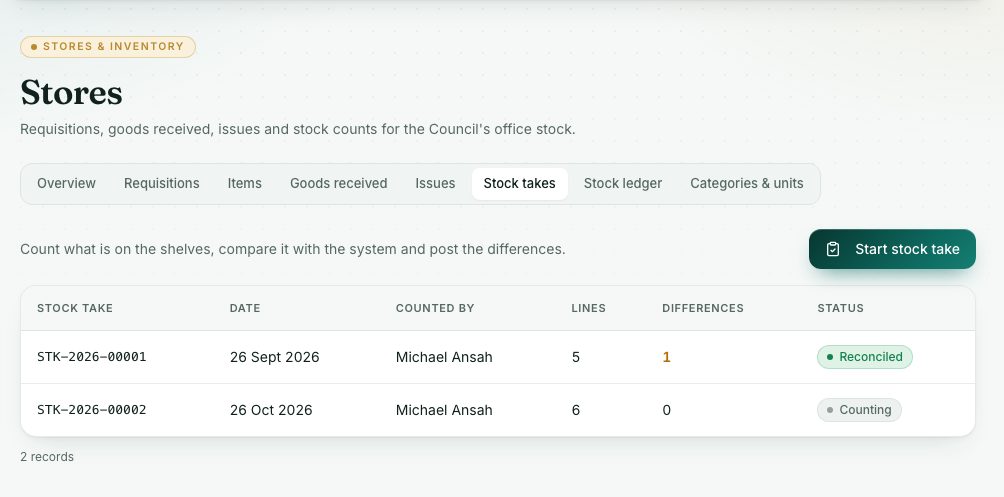
Count what is on the shelves, compare it with what the portal expects, give reasons for any difference, and post the differences to stock.
What you will learn
- Start a stock take and get a count sheet
- Enter counts and reasons
- Reconcile and post the differences
demo.ahpcghana.com/staff/stores/stock-takes
Step by step
- In the left menu, open Stores → Stock Take.
- Press Start stock take. Choose the Date, a Category (or leave All categories) and add Notes if you like.
- Press Make count sheet. The sheet lists every active item (one line per batch) with today's system quantity.
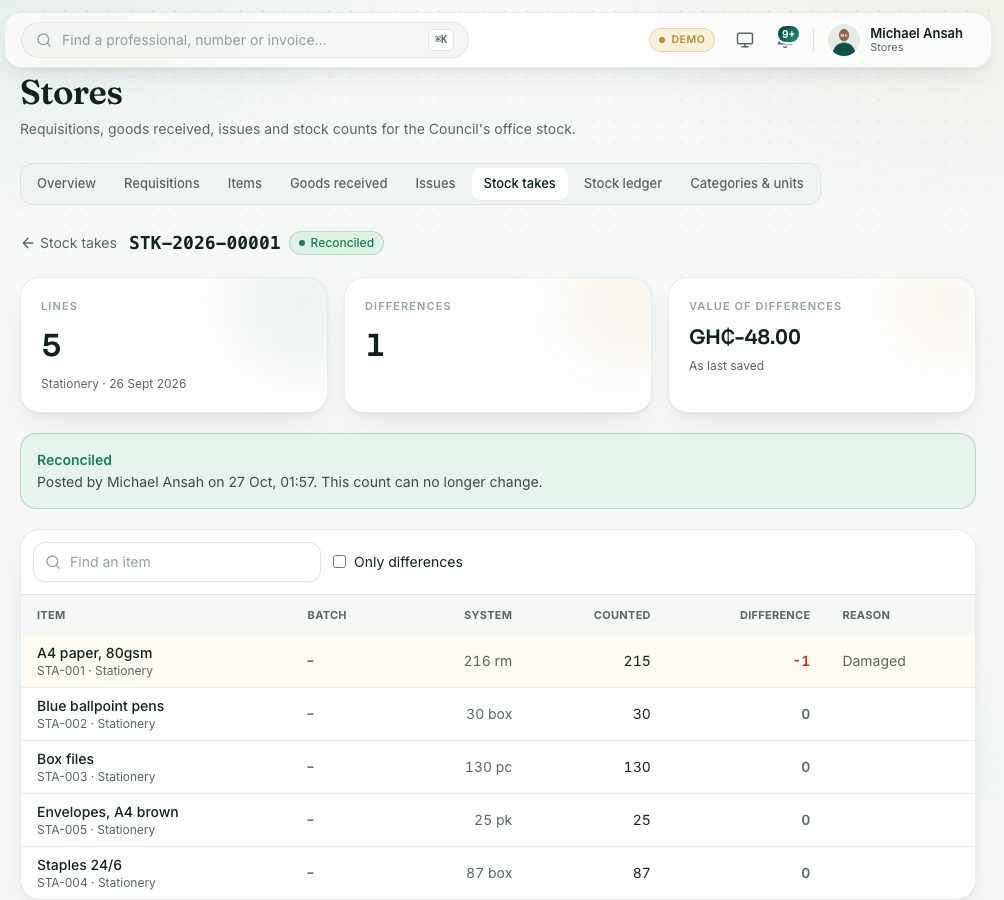
- Count the shelves. Type each figure in Counted. The Difference shows straight away.
- For every difference, type the reason in Reason, for example Two reams damaged by water.
- Press Save counts. You can save as often as you like while counting. Use Find an item and Only differences to move around.
- When the counts are final, press Reconcile, then Post differences.
demo.ahpcghana.com/staff/stores/stock-takes
What you will see
- Counting: the sheet is new. Counts saved: counts are in, ready to reconcile. Reconciled: differences are posted.
- At the top: Lines, Differences and Value of differences (in GH₵).
- Stock moved after this sheet was made: receipts or issues happened after the sheet was made. Differences are applied to today's stock, so recount if unsure.
Check yourself
Pick an answer for each question, then press Check my answers. Nothing is saved or sent.