
Issue items and the Stock Issued list
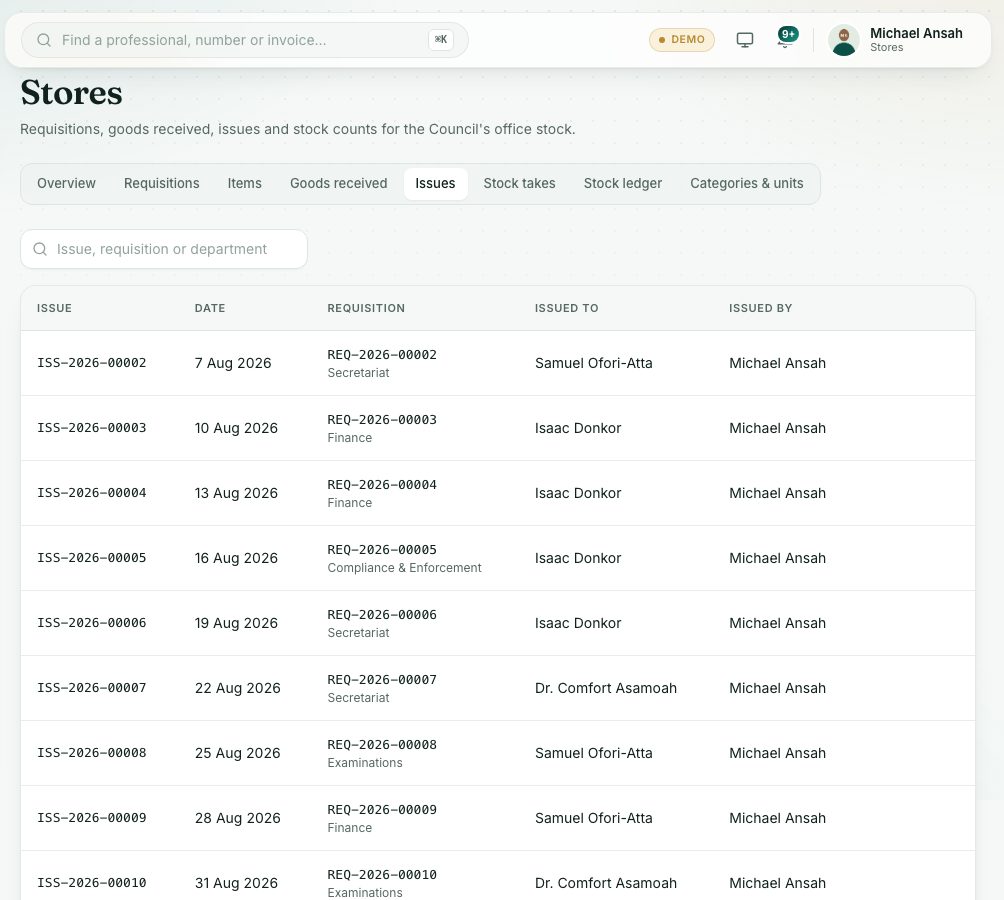
Hand out approved items against a requisition, all at once or in parts. Every issue is listed under Stock Issued, and can be reversed if it was wrong.
What you will learn
- Issue approved items
- Choose a batch and issue part of a requisition
- Find and reverse an issue
demo.ahpcghana.com/staff/stores/issues
Step by step
- In the left menu, open Stores → Requisitions and press the Ready to issue tab.
- Click the requisition and press Issue items.
- For each line:
- For a batch-tracked item, choose the batch (it shows what is left and the expiry date).
- Check Issue now. It is filled in with what is left, up to what is in stock. Lower it to issue part now.
- Issued to is the requester unless you choose someone else. Add a note if needed.
- Press Post issue. You see Items issued and stock updated.
- To see every issue, open Stores → Stock Issued. Search by issue, requisition or department, and click a row to see the items and their value.
Reverse an issue
Open the issue under Stock Issued and press Reverse issue. Type the reason and press Reverse. The items go back into stock and the requisition can be issued again. The issue shows Reversed with the reversal number and your reason. A posted issue can't be deleted.
Check yourself
Pick an answer for each question, then press Check my answers. Nothing is saved or sent.