
Approve requisitions
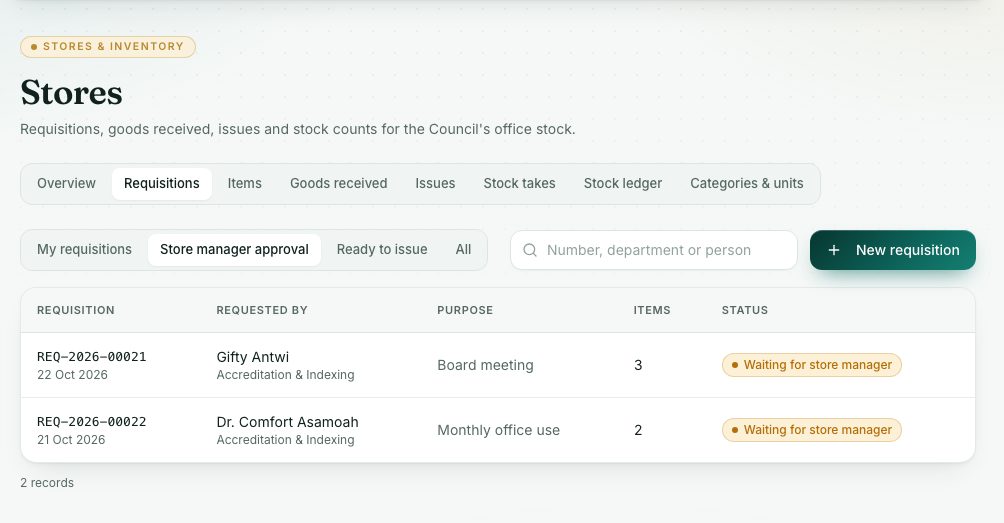
Supervisors approve their staff's requisitions first; then the store manager approves them for issue. Either can reduce quantities or reject with a reason.
What you will learn
- Find requisitions waiting for you
- Approve, adjusting quantities if needed
- Reject with a reason
demo.ahpcghana.com/staff/stores/requisitions?queue=manager
Step by step
- In the left menu, open Stores → Requisitions.
- Press the Supervisor approval tab (supervisors) or the Store manager approval tab (store manager).
- Click a requisition, then press Review as supervisor or Review as store manager.
- Check each line. You see what was requested and what is in stock. Change the Approved quantity if needed. You can't approve more than was requested.
- Add a Note (optional), then press Approve.
- To refuse it, press Reject, type the reason and confirm. The requester is told, with your reason.
What you will see
- After the supervisor approves, it moves to Waiting for store manager and the store manager is told.
- After the store manager approves, it shows Ready to issue.
Check yourself
Pick an answer for each question, then press Check my answers. Nothing is saved or sent.