
Request items from the store
Ask the store for items with a requisition. Your supervisor approves it, then the store manager, and the store issues the items.
What you will learn
- Raise a requisition and submit it
- Save a draft and come back to it
- Follow its progress
- Cancel it if needed
demo.ahpcghana.com/staff/stores/requisitions
Step by step
- In the left menu, open Stores → Requisitions. The My requisitions tab shows yours.
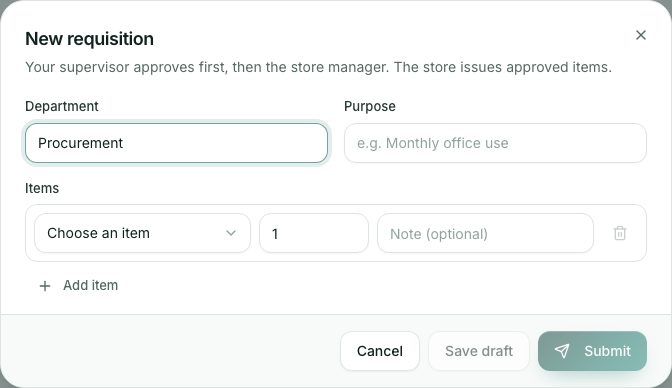
- Press New requisition.
- Department is filled in from your profile. Add a Purpose, for example Monthly office use.
- Under Items:
- Choose an item. You see how much is in stock under it.
- Type the quantity, and a note if needed (for example the colour).
- Press Add item for each extra item. Each item can appear once.
- Press Submit to send it for approval, or Save draft to finish it later.
- Open the requisition any time to see where it is: Submitted, Supervisor, Store manager and Issued, with who did each step and when.
What you will see
- Draft: only you can see and change it. Open it and press Edit or Submit.
- Waiting for supervisor, then Waiting for store manager.
- Ready to issue, Partly issued and Fully issued.
- Rejected by supervisor or Rejected by store manager, with the reason.
- Cancelled.
Check yourself
Pick an answer for each question, then press Check my answers. Nothing is saved or sent.