
Write and publish tender notices
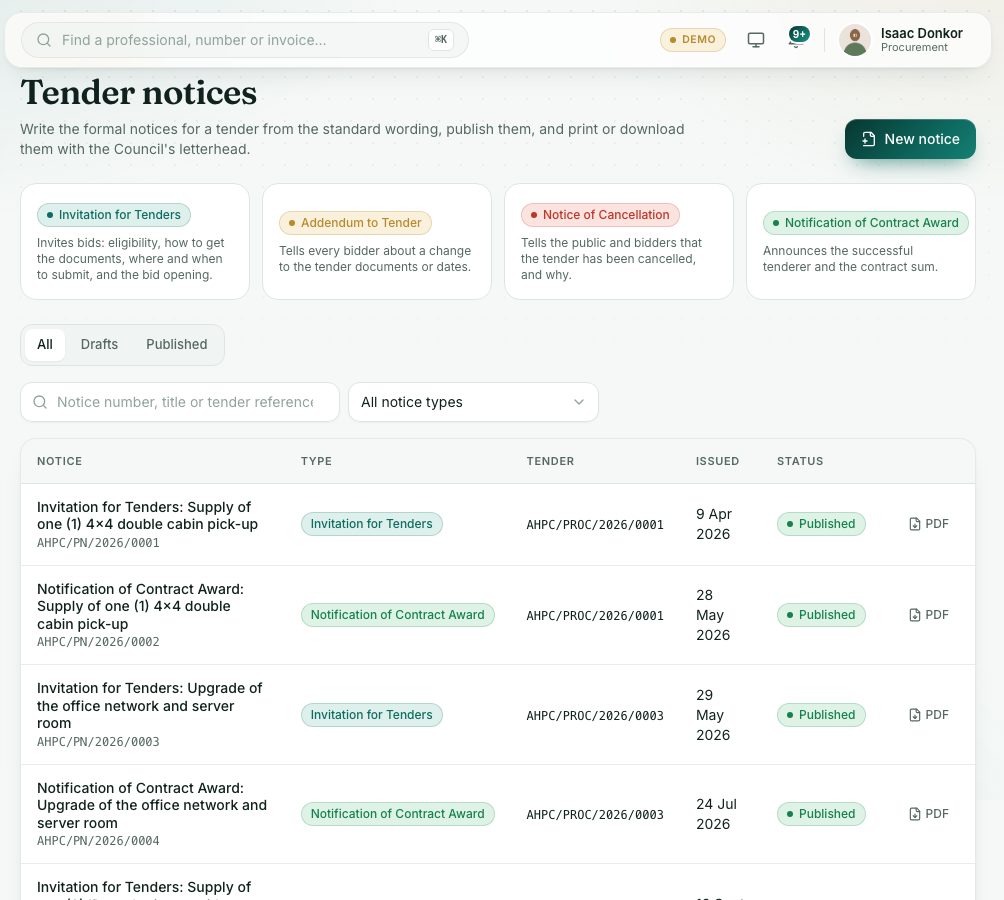
Write the formal notices for a tender from the standard wording: Invitation for Tenders, Addendum to Tender, Notice of Cancellation and Notification of Contract Award. Publish them and download them on the Council's letterhead.
What you will learn
- Write a notice from the standard wording
- Publish it
- Download or print it as a PDF
- Know which notice fits which stage
demo.ahpcghana.com/staff/procurement/notices
Step by step
- In the left menu, open Procurement → Tender notice. The page is titled Tender notices.
- Press New notice, or Write a notice on a tender's Notices tab.
- Choose the Tender and the Notice type. The standard wording is filled in from the tender.
- Check the Title and Wording (paragraphs are separated by a blank line), the Date on the notice (today if left empty), Signed by (for example The Registrar) and Title under the signature.
- Press Save draft.
- Open the notice and press Publish, then Publish again to confirm.
- Press Download PDF (or PDF in the list) for the copy with the Council's letterhead. It carries a light watermark with your name and the date, so every printed copy shows who downloaded it.
What you will see
- Invitation for Tenders: invites bids, with eligibility, how to get the documents, where and when to submit, and the bid opening.
- Addendum to Tender: tells every bidder about a change to the documents or dates.
- Notice of Cancellation: tells the public and bidders the tender is cancelled, and why.
- Notification of Contract Award: announces the successful tenderer and the contract sum.
Check yourself
Pick an answer for each question, then press Check my answers. Nothing is saved or sent.