
Manage contracts and awards
Create a contract from an awarded tender (or directly for a single-source purchase), then track its milestones, payments, balance and variations, and rate the supplier when it is completed.
What you will learn
- Create a contract from an awarded tender
- Add milestones and record payments
- Add a variation
- Complete or terminate a contract
demo.ahpcghana.com/staff/procurement/contracts
Step by step
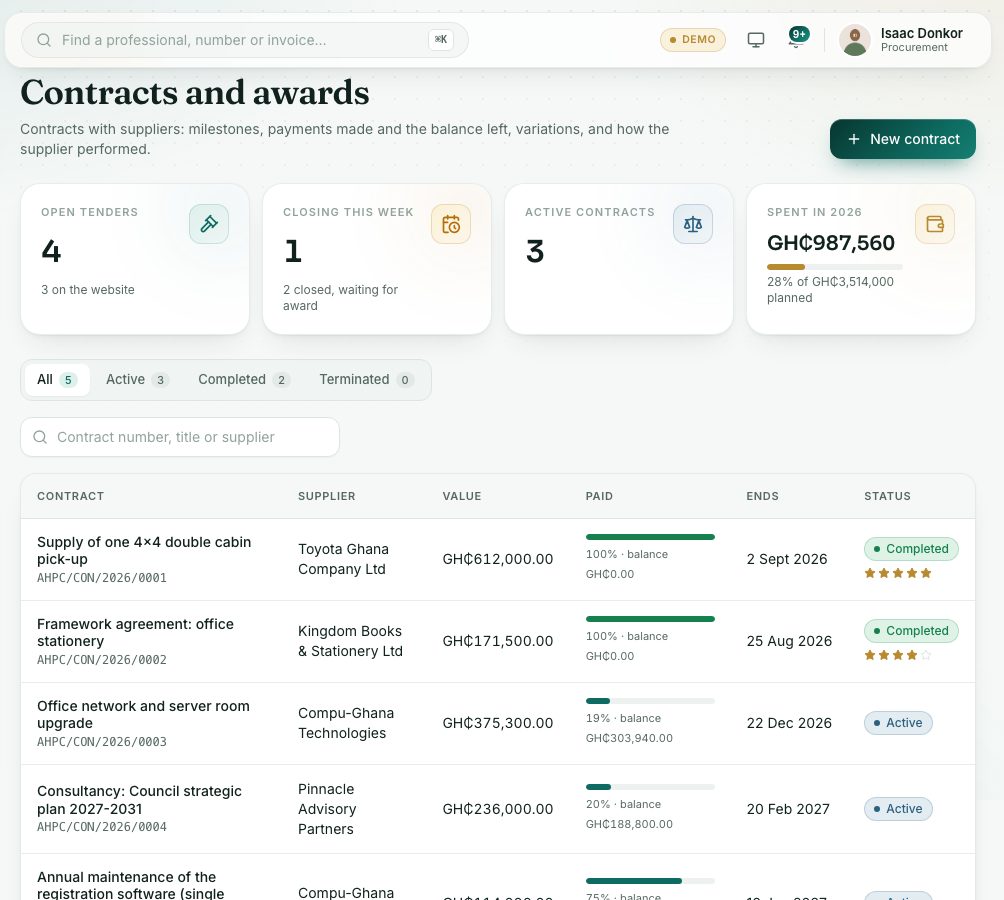
- In the left menu, open Procurement → Contracts and awards. Use the tabs All, Active, Completed and Terminated.
- If a banner says awarded tenders are without a contract, press Create contract on it. Or press New contract and choose From an awarded tender or Direct (no tender here).
- Check the Supplier, Title, Contract value (GH₵), Signed on, Starts and Ends, and press Create contract. A contract number is given when you save.
- Open the contract. Under Milestones and deliverables, press Add milestone for each deliverable with its due date and amount.
- Under Payments, press Record payment: the Amount (GH₵), Paid on, Payment voucher or cheque number (for example PV/2026/0142) and, if it applies, For milestone.
- If the value or end date changes, press Add variation and fill in What changed, Change in value (GH₵), New end date and Approved on.
- When everything is delivered, press Mark completed, give the supplier a star rating for their performance and press Complete contract.
What you will see
- At the top of a contract: Contract value, Paid and Balance.
- Active, Completed, Terminated, or Past end date for an active contract after its end date.
- A payment larger than the balance left is flagged More than the balance left.
Check yourself
Pick an answer for each question, then press Check my answers. Nothing is saved or sent.