
Keep the Approved Suppliers List
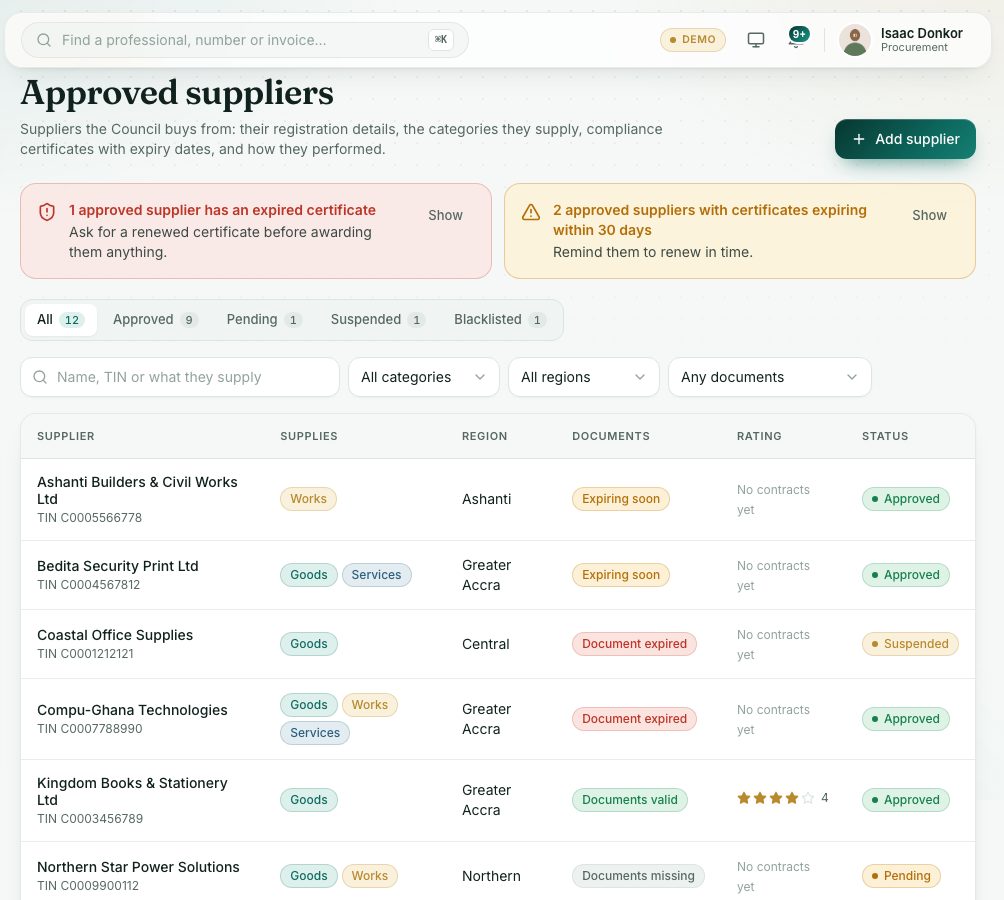
The suppliers list holds every supplier's details, what they supply, their compliance certificates with expiry dates, their bids and contracts, and how they performed.
What you will learn
- Add a supplier
- Record their compliance certificates
- Approve, suspend, blacklist or reinstate a supplier
- Spot certificates that have expired or are expiring
demo.ahpcghana.com/staff/procurement/suppliers
Step by step
- In the left menu, open Procurement → Approved Suppliers List. Use the tabs All, Approved, Pending, Suspended and Blacklisted, and search by name, TIN or what they supply.
- Press Add supplier. Fill in Business name, TIN, Business registration number, Contact person, Phone, Email, Address, Region, What they supply and the categories they supply, then press Save. New suppliers start as Pending.
- Open the supplier and press Add document under Compliance documents. Choose the Document (Business registration, GRA tax clearance, SSNIT clearance, PPA registration or Other), the Certificate number, Issued and Expires dates, and attach a scan if you have one.
- When the documents are checked, an approver presses Approve.
- To stop using a supplier, press Suspend or Blacklist and give the reason. Later, Reinstate or Lift blacklisting (a reason is needed to lift a blacklisting).
What you will see
- Certificate badges: Documents valid, Expiring soon, Document expired or Documents missing.
- A red banner when approved suppliers have an expired certificate: ask for a renewed certificate before awarding them anything. An amber one for certificates expiring within 30 days.
- The supplier's Bids and Contracts, and their performance rating from completed contracts.
Check yourself
Pick an answer for each question, then press Check my answers. Nothing is saved or sent.