
Coordinators: your students for indexing
See your institution’s students at each step of indexing and find the ones waiting for your check.
What you will learn
- Open Students for indexing
- Read the counters and tabs
- Find one student or one student list
The Council uploads your institution’s list of students. Each student gets their own sign-in, completes their details, uploads their WAEC result slips and documents, and sends the application. You check it first. Then the zonal officer verifies it, and the Council checks the WAEC results and issues the index number.
demo.ahpcghana.com/partner/indexing
Step by step
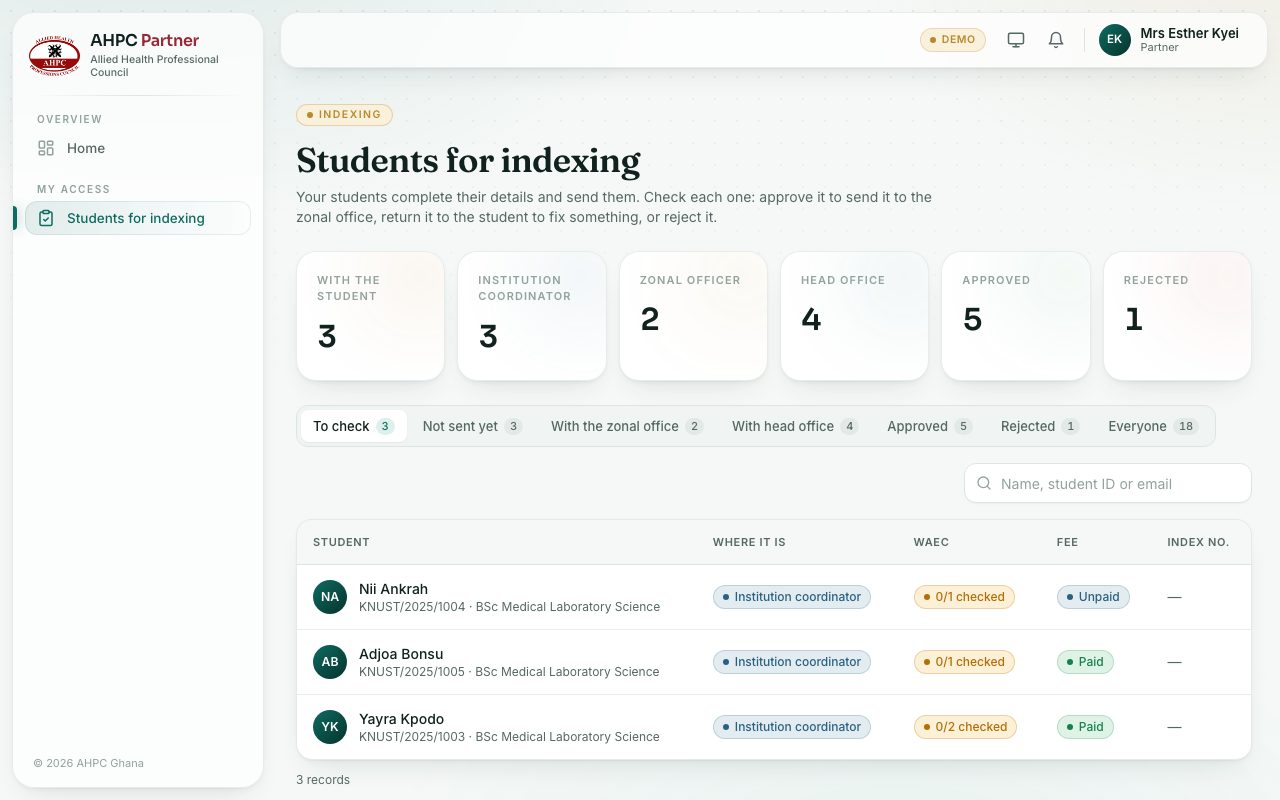
- Open My access → Students for indexing. The To check tab is shown first.
- Use the tabs to see students at each step:
- To check: sent by the student, waiting for you.
- Not sent yet: the student hasn’t finished and sent their application.
- With the zonal office and With head office: you approved them; they are further on.
- Approved, Rejected and Everyone.
- If you have more than one student list, pick one in Every student list.
- Search by name, student ID or email. Press a student to open their application.
What you will see
- The WAEC column shows how many result slips are checked, for example 0/1 checked. The Fee column shows Paid or Unpaid.
- The Index no. column fills in once the Council approves the student.
Check yourself
Pick an answer for each question, then press Check my answers. Nothing is saved or sent.