
Track files with the Document Tracker
Register a letter or file when it reaches your unit, then follow it desk to desk. Each move is acknowledged, with minutes and how long it stayed.
What you will learn
- Register a document and print its tracking slip
- Acknowledge a document sent to you
- Forward, minute, return or close a document
demo.ahpcghana.com/staff/document-tracker?unit=general-admin
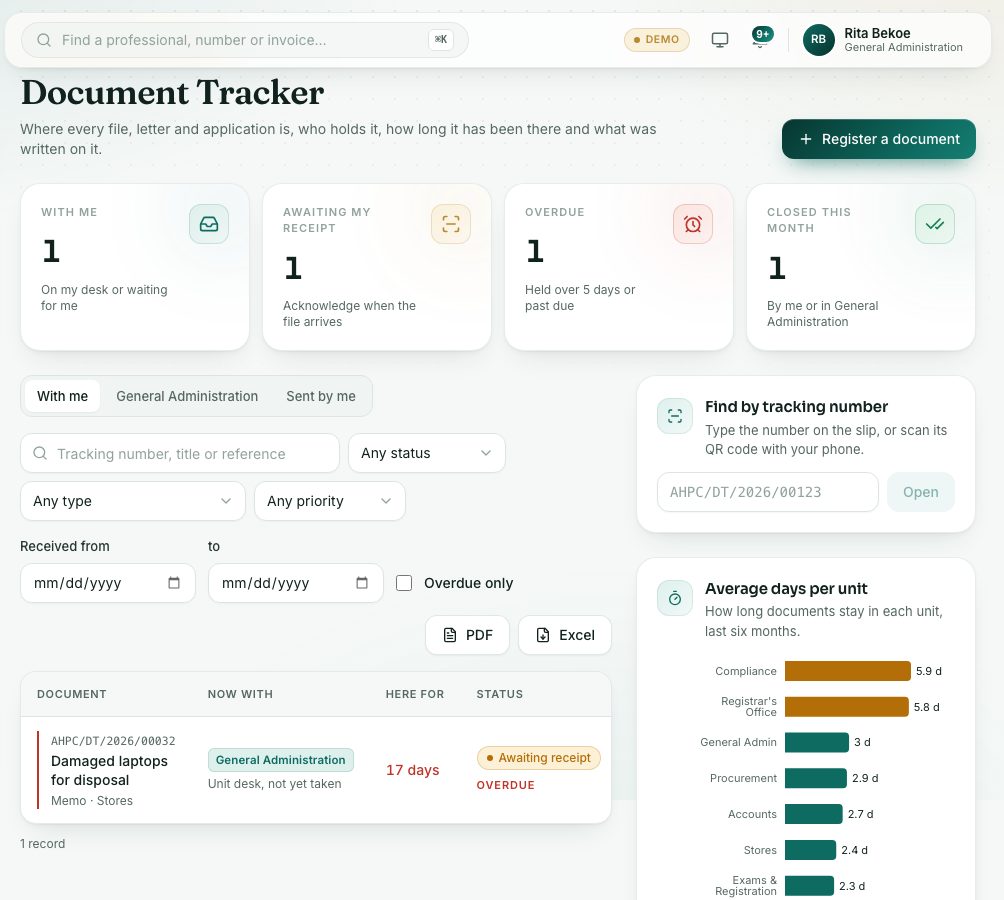
Step by step
- Open General Administration → Document Tracker.
- Press Register a document:
- Type the Title or subject, choose the Type and where it came from, and the Date received.
- Set the Priority and Confidentiality. Add a scanned copy if you have one.
- Tick Send it on straight away to forward it now, or leave it on your desk.
- Press Register (or Register and send).
- Open the document and press Tracking slip. Print it and keep it on the file. Its QR code opens the trail. The slip carries a light watermark with your name and the date.
- When a file reaches you, open it from the With me tab, press Acknowledge receipt and then I have received it.
- To send it on, press Forward. Choose To unit, and a person if you like, the Action requested and a Minute, then press Forward in the box.
- You can also press Add minute to write on it without moving it, Return to sender (a minute is needed) or Mark actioned.
- When the matter is finished, press Close and file, type Where the file is kept, for example Cabinet 3, shelf B, and press Close and file in the box.
What you will see
- Statuses: Awaiting receipt, On a desk, Actioned and Closed and filed.
- The trail shows every desk, who sent it, who received it, the minute and how long it stayed.
- A document held at one desk too long is marked Overdue.
Check yourself
Pick an answer for each question, then press Check my answers. Nothing is saved or sent.